

Display square units with superscript in a Word handout
To display square centimeters in a Word handout, type cm2, select only the numeral 2, and apply Superscript from the Home tab. The result should read as a unit with a raised two, while the letters remain on the normal baseline. Superscript is character formatting: it changes the appearance of the selected numeral. It does not calculate an area or verify that the quantity beside the unit is correct.
Start with a meaningful sentence
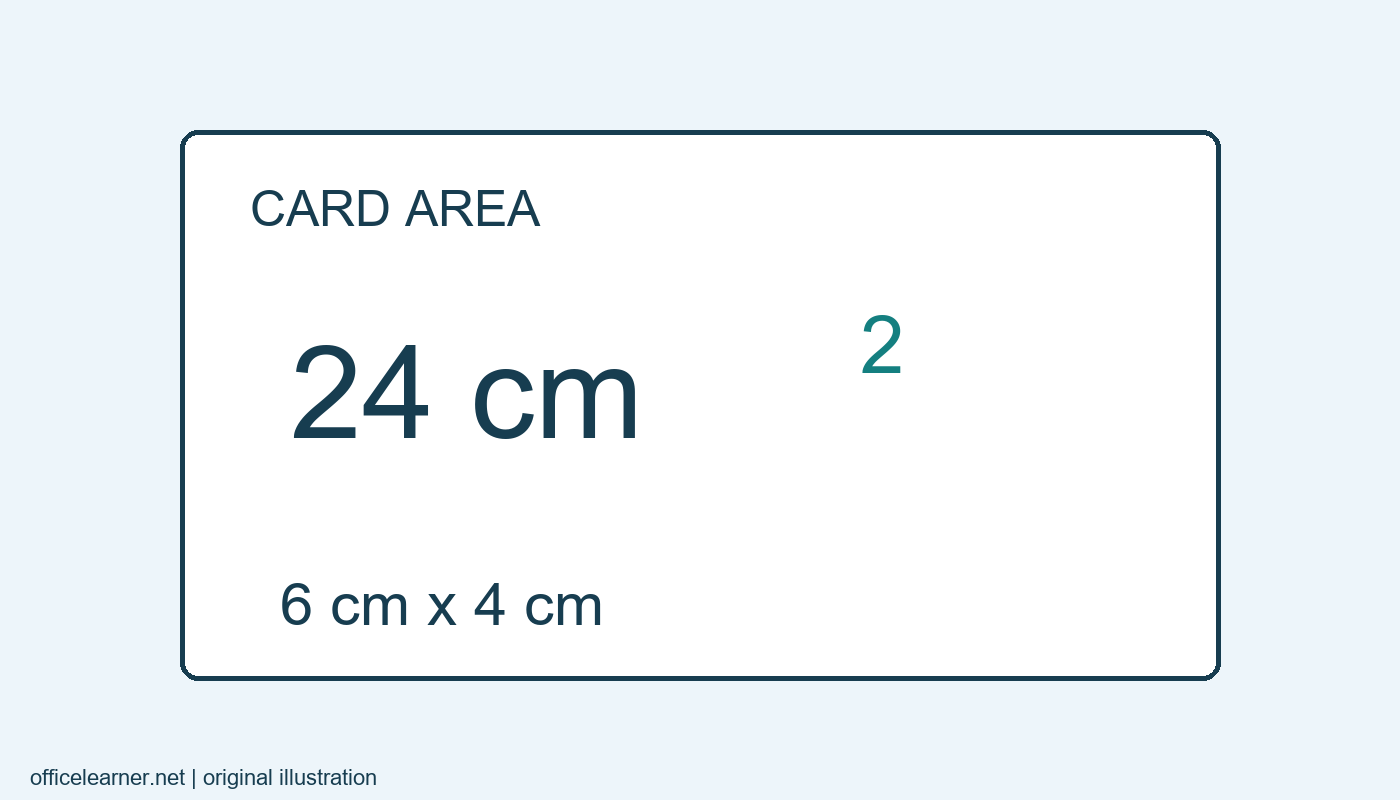
Use a practice sentence such as A card measuring 6 cm by 4 cm has an area of 24 cm2. The multiplication is six times four, giving twenty-four square centimeters. This example deliberately includes ordinary length units as well as a square unit. Only the final numeral two needs to rise above the line. The earlier numbers describe side lengths and should remain normal text. Copy this sentence into a disposable document so you can practice without changing a finished handout.
Before formatting, read the sentence aloud and identify the measurement type. If the sentence describes the distance around the card, it needs a perimeter and ordinary centimeters instead. A raised two would be misleading there even if it looks polished. Decide the meaning first, then apply the visual treatment. That order is particularly useful when a worksheet contains length, area, and volume questions close together, because similar-looking labels can carry different mathematical meanings.
Select and raise the numeral
Place the insertion point beside the last 2 and select that single character. On the Home tab, find the Font group and choose Superscript, commonly shown with a raised character. Microsoft documents this formatting route. Look at the selection before clicking: if you selected cm2 together, the entire unit will rise. Undo and select again if necessary. A careful one-character selection is faster than correcting several nearby words after formatting a broad range accidentally.
After applying the format, move the insertion point beyond the unit and type a normal space followed by the next word. Check that subsequent text sits on the baseline. If it is still raised, switch Superscript off before continuing. Formatting can remain active at the insertion point. Do not compensate by shrinking and manually moving ordinary text; that makes later edits harder. The built-in superscript setting records the intended character treatment directly and can be removed from the same selected character.
Keep the explanation readable
The area sentence should still explain the multiplication in words or an accessible equation. Do not rely on a tiny raised character as the only indication that the problem concerns area. A heading such as Card area and a sentence saying twenty-four square centimeters give readers another route to the meaning. Use a normal readable font size for the handout rather than making the whole paragraph smaller to fit a crowded page.
For a classroom example, place the side-length information before the calculated area. A reader can then check that both dimensions use centimeters and that their product produces square centimeters. If a later problem uses meters, update the unit letters as well as the number. Superscript does not convert centimeters into meters. Likewise, changing 24 to 48 does not prove that the rectangle doubled in both dimensions. Treat the numerical explanation and its typography as two checks that must agree.
Fix common selection mistakes
If the entire last word appears high, select the affected text and toggle Superscript off. Reapply it only to the numeral. If the two is merely small but remains on the baseline, check whether you changed font size instead. If a pasted version looks different, inspect its character formatting after pasting. Text copied into another application may retain formatting, convert to plain text, or use a different representation depending on the destination and paste option.
Avoid using the letter o, an asterisk, or a degree symbol as a substitute for the squared unit. Each can imply something different. When you need an editable mathematical expression with several powers, consider Word's equation tools instead of manually arranging many characters. This guide covers a simple unit inside prose. It is not an equation-layout method for fractions, matrices, or a derivation containing multiple levels of notation. Choose the tool that matches the amount of mathematical structure present.
Review a short practice handout
The Microsoft reference covers Word on several platforms, but control placement and keyboard shortcuts vary. These instructions use the English Home tab terminology and are aimed at desktop Word for Microsoft 365 or recent supported perpetual editions. If your ribbon is compact, expand its Font controls or use the application help for your version. Do not assume a Windows keyboard combination will be identical on a Mac. The visible Superscript command is the clearest route for this exercise.
Create two more sentences: a 3 cm by 5 cm card has an area of 15 cm2, and a 2 cm by 8 cm card has an area of 16 cm2. Format the last numeral in each unit, then inspect all three at ordinary reading zoom. Ask a reader which numbers are dimensions and which are areas. Finally, change one card size and correct its area independently of the typography. Can you explain why the two stays raised even when the area value changes?














