

Format the numeral in H2O as subscript in Word
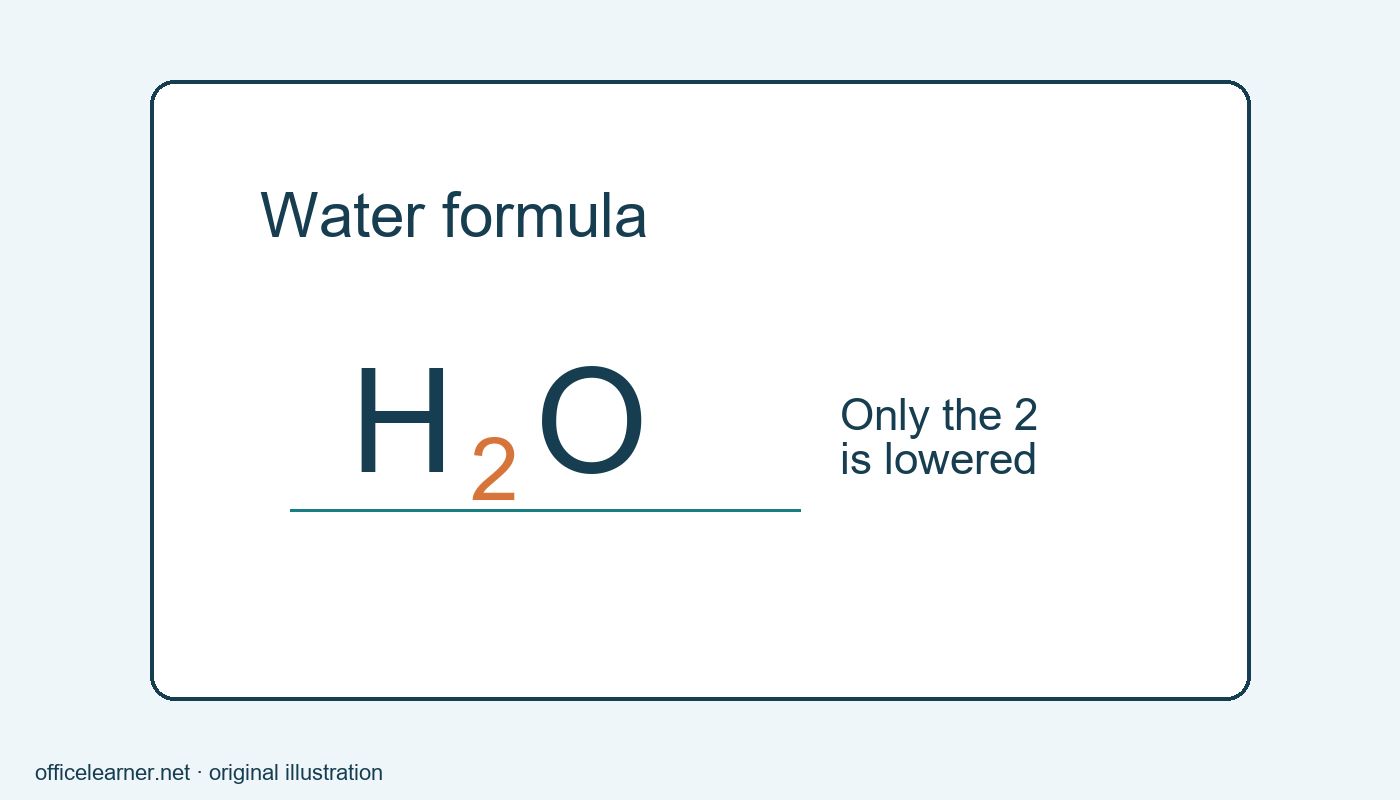
To display H2O with its numeral below the text baseline, select only the 2 and apply Subscript in Word. Leave H and O at their normal position. This changes the presentation of the selected character; it does not insert an equation or alter the chemical meaning of the text. The exercise below uses a short handout so you can check the selection, continue typing normally, and review the result before sharing.
Start with an ordinary text line
Create a practice document and type Water is written H2O. Put that sentence on its own line with a plain readable font. Add a second line that says Sample A contains water. These sentences are only a formatting exercise, not a laboratory instruction. Save the document before changing the characters so you have a simple starting point if your selection accidentally includes too much text.
Select just the numeral 2 in H2O. On the Home tab, find the Font controls and apply Subscript, commonly shown with an x and a lowered numeral. In desktop Word you can also open the Font dialog and use its Subscript option. Use the visible command rather than guessing a shortcut from another operating system. Microsoft documents separate instructions for different Word platforms; the exact ribbon arrangement depends on version and window width.
Check what actually changed
The numeral should appear smaller and lower than the adjacent letters. H and O should stay on the normal baseline. Click away from the selection to inspect the word as a reader would see it. If the entire expression drops, undo and select only the numeral again. If nothing appears different, check whether you selected a neighboring space instead of the 2. Enlarging the document view temporarily can make a one-character selection easier.
Now place the insertion point after the sentence and type a short normal phrase. If the new text appears lowered too, turn Subscript off before continuing. Formatting can remain active at the insertion point, particularly when you type immediately after a formatted character. A successful original selection is only half the task; the following text also needs the correct format. Check the second line to confirm that it remains ordinary body text.
Keep the method appropriate to the content
A simple formula in a sentence is a reasonable use for character formatting. More complex mathematical notation, fractions, or multi-level expressions may be clearer with Word's equation tools. Do not assemble a complicated equation from many manually raised and lowered fragments merely because subscript worked for one numeral. Those fragments are harder to edit and may become inconsistent if someone changes the font or size later.
Also distinguish formatting from a dedicated Unicode subscript character. Here you entered an ordinary 2 and applied Word formatting. Copying into a plain-text destination can remove that formatting and show H2O again. If the destination is an email form, website editor, or database field, inspect the pasted result there. The appearance in the Word file does not prove that another system preserved the same character positioning.
Review the document as a handout
Use a readable body size and keep the formula within a complete explanatory sentence. A very small numeral can become difficult to distinguish on a printed page. Try reading the line at the size a recipient will use instead of relying only on a highly enlarged editing view. If the handout will be exported to PDF, inspect the exported copy as a separate deliverable. Font substitution and conversion deserve their own checks.
For this practice document, add the plain-language phrase water formula beside the expression if that helps your audience. Do not rely on lowered position alone to communicate every meaning in an accessible document. Assistive technology and downstream converters can treat formatted characters differently. A short explanatory sentence supplies context even when a reader encounters the text in another representation. Keep any scientific explanation within your actual knowledge and source material.
Diagnose common editing mistakes
If pressing the command appears to remove the formatting, the selected numeral may already have been subscript. The control acts as a toggle. Inspect the selection and apply the command once rather than repeatedly clicking until the text looks vaguely smaller. If you accidentally change a whole paragraph, use Undo before adding more edits. Recovering immediately is easier than reconstructing several mixed formatting changes later.
If a colleague reports an ordinary 2 after importing the file into a publishing tool, inspect the converted article. Some importers preserve text while omitting character positioning. That is a publishing conversion issue, not evidence that Word failed to save the document. For a real post, check the final destination and use its supported formatting tools where necessary. Keep the editable DOCX as the source rather than repeatedly copying through several applications.
Practice with a second expression
Add CO2 on a new line, select its numeral, and apply the same formatting. Then add Room 2 on another line and leave that numeral unchanged. Explain why the two selections serve different purposes. Save, close, and reopen the practice document to inspect both expressions. Current desktop Word supports subscript; web and Mac controls may be arranged differently. Which step would you include in a handoff note so another editor avoids lowering the following sentence?














