

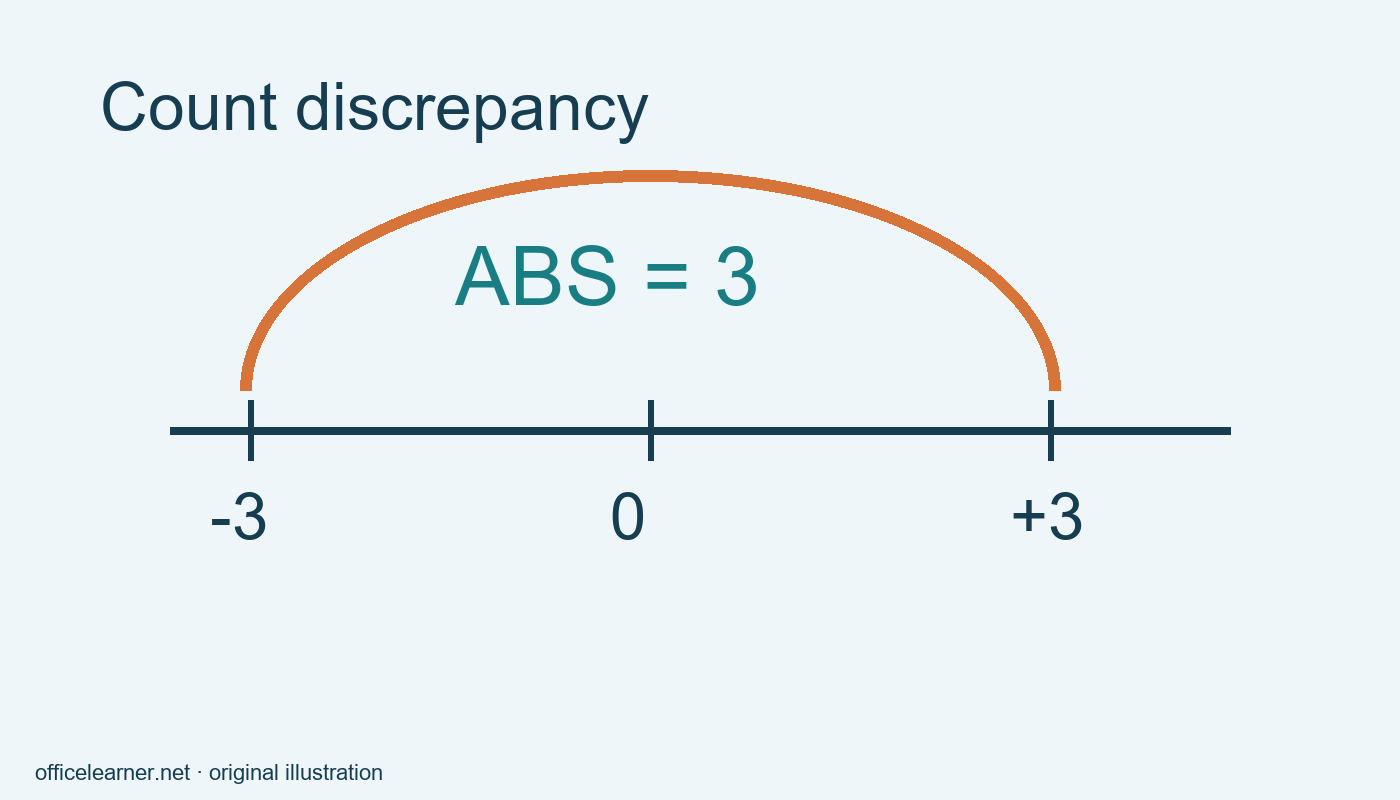
Measure count differences with Excel ABS
Use ABS on the difference between two numbers when you need the size of a discrepancy without its positive or negative sign. For a small stock check, keep the signed difference in one column and its absolute value in another. This lets you see both whether a count is above or below the plan and how large the mismatch is. ABS alone cannot tell you the direction of the difference.
Build a four item practice sheet
Open a blank workbook and enter Item, Planned, Counted, Difference, and Gap in A1:E1. In the next four rows, use these invented examples: Red folders, 24, 21; Blue folders, 18, 23; Green folders, 12, 12; Yellow folders, 15, 14. Treat these as training quantities, not records from a real business. All quantities use the same unit: individual folders. Mixing boxes and individual folders would make the arithmetic misleading even if every formula worked.
Enter =C2-B2 in D2 and =ABS(D2) in E2. Fill both formulas down through row 5. The signed differences should be -3, 5, 0, and -1. The corresponding gaps should be 3, 5, 0, and 1. Check the first row manually: counting twenty-one against a plan of twenty-four leaves three fewer folders. The negative sign expresses fewer; the absolute value expresses a distance of three.
Read the two columns together
A gap of five is larger than a gap of three, regardless of direction. That makes the Gap column useful when deciding which entry to recount first. In this example, inspect Blue folders before Red folders. This is a suggested review order for the exercise, not a claim that every inventory system should prioritize discrepancies this way. Item value, expected variation, and operational needs can require a different process.
In an empty cell, enter =SUM(D2:D5). The result is 1. Then enter =SUM(E2:E5); the result is 9. These totals answer different questions. The signed total is the net difference across all folders. The gap total is the combined size of the four discrepancies. A positive and a negative difference can cancel in a net total while still representing two rows that need attention. Keep clear labels next to both totals.
Avoid losing useful information
Do not overwrite the Counted values with ABS formulas. Preserve the original numbers so another reader can reconstruct the result. Likewise, do not replace the signed Difference column just to make a report look tidier. A negative number is useful information. If your worksheet only displays positive gaps, add a note explaining that the figures measure magnitude and do not indicate surplus or shortage.
ABS returns the absolute value of a number. It does not round decimals, validate the input, or correct an inaccurate count. If your data is measured in meters, a difference of -0.25 has an absolute value of 0.25. Whether that difference matters depends on the measurement and tolerance you define separately. Formatting a decimal with fewer visible places can also hide a small discrepancy, so inspect the underlying value before deciding two measurements agree.
Troubleshoot a surprising result
If the formula displays as text, check whether the cell was formatted as Text before entry. Change it to General, then re-enter the formula. If you see an error, inspect the referenced cells for nonnumeric labels or existing errors. Do not immediately wrap everything in an error-hiding formula: a visible problem can reveal a misplaced heading or a broken reference. Keep the example simple until the basic calculation is reliable.
If every row repeats the first gap, inspect the references. The row number should change as you move down the filled formulas. For this exercise, E3 should refer to D3, not D2. Compare the formula bar against the row labels rather than judging only from the visible results; two equal gaps could otherwise conceal a repeated reference. Save the file with a name that identifies it as a practice stock check.
Try a deliberate revision
Change the Blue folders count from 23 to 13. Its signed difference becomes -5, while its absolute gap remains 5. Explain in one sentence why the sign changes but the gap does not. Next, change Green folders to 10 and predict both totals before checking the sheet. The signed total becomes -11 and the gap total becomes 11. Return the data to the original example when you finish so a colleague can reproduce the opening results.
ABS is available in current Microsoft 365 Excel and supported perpetual desktop versions, with the function also documented for Excel on the web. Interface details can differ, but this example uses ordinary cell references rather than newer dynamic-array features. The reference below establishes the function behavior; the folder dataset and review method are original teaching examples. What additional label would help a new reader distinguish the net difference from total discrepancy size?Before sharing, include a small note identifying the units and the subtraction order. Counted minus Planned makes a negative result a shortage in this sheet. Reversing that order would reverse the signs while leaving the absolute gaps unchanged. Another editor needs that convention to interpret the figures correctly.














