
Extract a label suffix with Text End in Power Query
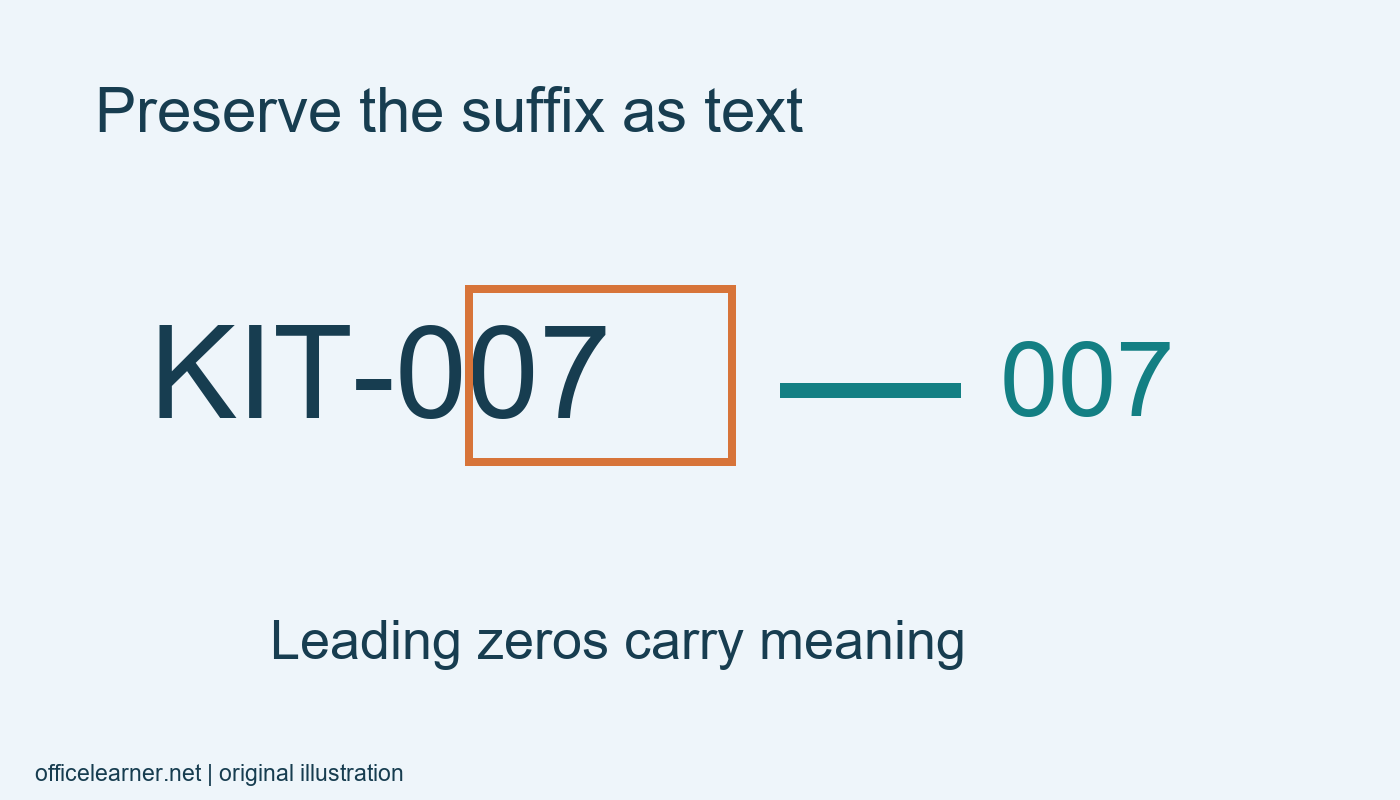
Use Text.End in Power Query when a text label has a fixed-length suffix you want to inspect separately. In this original example, ART-104 becomes 104 when you take the last three characters. Keep the result as text so a suffix such as 007 retains its leading zeros. A suffix extraction identifies characters at the end of a label; it does not verify that the label follows your organization's coding rules.
The example targets Power Query Editor in Power BI Desktop. It uses the M expression Text.End([Label], 3) in a custom column. Microsoft's language reference defines the final-character operation; the workshop labels and checks below are original teaching examples. Power BI service editing experiences, Excel Power Query, and other hosts can arrange commands differently. M function names and capitalization matter even when your application's display language differs.
Enter a small source table
In a practice Power BI Desktop file, use Home and Enter data to create a table with a text column called Label. Enter ART-104, KIT-007, and MAP-230 on separate rows. Name the table PracticeLabels. Choose the option that opens or transforms the data in Power Query Editor, depending on your current interface. Confirm that you are working with the three invented rows before adding a transformation.
Inspect the type of Label. It should be text. These are identifiers rather than quantities, so treating the entire code as a number would be inappropriate. Preserve the original column throughout the exercise. Keeping input and extracted result side by side lets you compare them row by row and explain the rule to someone who did not create the query.
Add the suffix column
Choose Add Column and Custom Column. Name the new column Suffix. Enter Text.End([Label], 3) as its expression, then confirm. The expected values are 104, 007, and 230 in the same row order as the source labels. If your editor shows an expression preview or validity indicator, inspect it, but also check the resulting rows. Valid syntax alone does not establish that you chose the right source column.
Set or confirm the new column's type as text. A numeric conversion could turn 007 into 7, losing information needed to match a printed identifier. The three-character suffix is meaningful here because our invented code design reserves exactly three characters at the end. Before using this pattern with real labels, verify the actual code specification instead of inferring it from a few convenient examples.
Explain the character rule
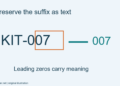
Read ART-104 from right to left: the final characters are 4, 0, and 1. Retaining those three in their original order gives 104. The hyphen is outside the selected suffix. For KIT-007, the final three characters include two zeros. Those zeros are not decoration; they occupy positions in the identifier. This is why the output's data type is part of the solution rather than an afterthought.
Compare this with a delimiter-based task. If your real labels end in variable-length sections such as KIT-7 and KIT-1234, taking exactly three characters would not reliably identify the entire section after the hyphen. You would need a rule designed around that structure. Choose the transformation from the meaning of the code, not from whichever menu item happens to be easiest to find.
Add a deliberate exception
Return to the source step and add ART-104X as a fourth practice label if your Enter Data table permits editing through its source settings. The final three characters are now 04X. That result is consistent with the operation but inconsistent with an expectation of three numeric suffix characters. The query has not failed; your data has violated the intended label pattern. Record this distinction when explaining an exception.
Do not silently remove the X just to make the preview look tidy. It might indicate a revision, a data-entry mistake, or an entirely different coding system. Keep the original text and investigate the meaning. A transformation that produces clean-looking values can conceal source problems if it throws away context before anyone reviews them. For this exercise, mark the fourth row as an exception in your written notes.
Diagnose expression errors
If the custom column errors, check that Label is spelled exactly as the column header and that the expression uses straight quotation marks where required. Our expression contains no quoted column name because [Label] refers to a field. Check Text.End capitalization and the comma between the input and count. Avoid pasting typographic punctuation from a formatted document into the formula editor without inspecting it.
If you see numbers without leading zeros after extraction, look through Applied Steps for an automatic or manual type conversion. Inspect the preview before and after the conversion to locate where the information changed. Fix the type deliberately rather than adding zeros with a display format that only hides the underlying change. Identifier text should stay consistent from the transformation through the model and any export you expect readers to use.
Validate before loading
Before Close and Apply, compare every practice row against a written expected result. The original three should be 104, 007, and 230. The exception should be 04X. Check the column names, row count, and text type. These checks are small enough to perform manually and help separate expression correctness from coding-policy correctness. No desktop execution is claimed by this written tutorial; the values are reproducible examples for you to verify.
Try replacing the practice labels with BAG-012, BOX-900, and PEN-018. Predict all three outputs before refreshing the query. Then explain why changing the final count from three to two would lose a meaningful character in each result. What should your process do if an incoming label has an unexpected extra character: reject it, flag it, or apply a separately documented rule?