
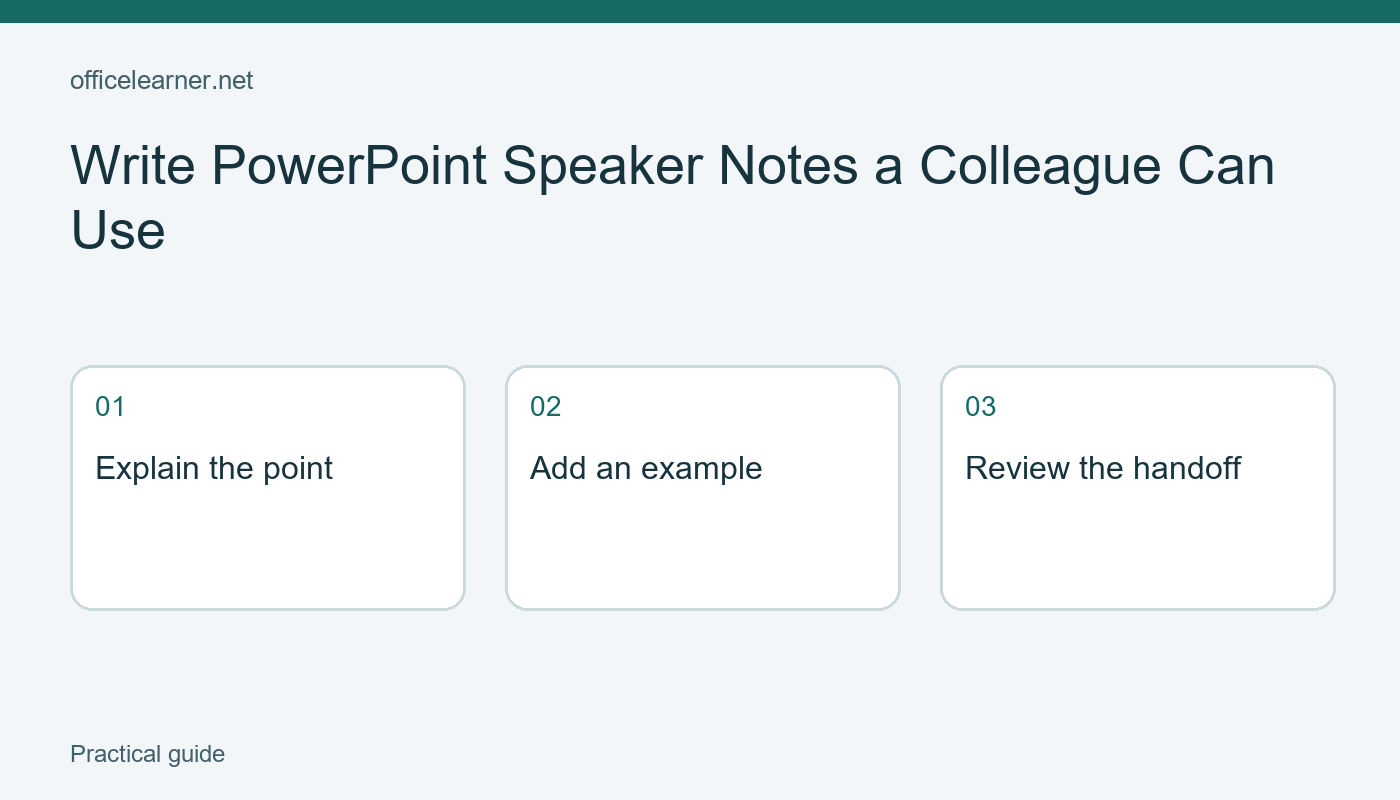
Write PowerPoint Speaker Notes a Colleague Can Use
To add useful speaker notes, select a slide in PowerPoint's Normal view, open the Notes pane beneath it, and type the explanation that belongs with that slide. Write enough context for another presenter to understand the point, the example, and the transition. Keep the slide itself focused on what the audience needs to see. Notes are part of the presentation file, so review them before sharing the deck.
This exercise builds a three-slide handoff for a fictional library orientation. It focuses on preparing the content behind the slides rather than configuring a live show. If you already know Presenter View, the missing skill may be deciding what to write in the pane and how to make the notes understandable to someone who did not build the presentation.
Start with a small teaching goal
Create three slides titled Find a book, Borrow a book, and Return a book. Use short, fictional instructions rather than copying a real library's rules. Put a simple audience-facing message on each slide. For example, the first slide might say Search by title or subject. The notes should explain the action and its purpose without duplicating every visible word.
Before writing, define the audience as new volunteers helping visitors during an orientation. Their job is to explain a basic process, not resolve account disputes or interpret library policy. This boundary keeps the notes practical. Whenever a rule depends on the actual institution, write a reminder for the presenter to verify it rather than inventing a precise loan period or penalty.
Open the Notes pane using the Notes control near the bottom of the PowerPoint window. If the pane is very short, increase its height so you can see a complete paragraph while editing. Microsoft documents notes entry in the Normal view workflow. The position and appearance of the control vary by platform and window layout.
Give each slide one usable speaking paragraph
For Find a book, try an original note such as: Ask the visitor for a title, author, or subject. Demonstrate a fictional search for gardening, then point out the shelf location field. Explain that the search result helps identify where an item belongs, but it does not guarantee the book is currently on the shelf. Pause and ask what the visitor would try if the title is unknown.
For Borrow a book, describe the steps at a level your colleague can follow. Mention that the presenter should use the organization's actual borrowing instructions. Include a short transition: Once a visitor has found the item, the next question is how to take it home. This tells the colleague why the slide follows the previous one and prevents an abrupt jump between unrelated bullets.
For Return a book, write one example and one question. For instance, explain a fictional return slot location while explicitly asking the presenter to replace it with the real location before delivery. Then ask the audience where they would check a return deadline. The note is now a teaching aid with a concrete task, rather than a second slide full of headings.
Separate facts from reminders
Use plain labels inside the notes when they help: Explain, Example, Check locally, and Ask. Keep the labels consistent across the three slides. They let a colleague quickly distinguish a spoken sentence from an instruction to themselves. A reminder such as Check locally should never accidentally be presented as a verified policy claim.
Avoid filling the pane with a transcript unless the speaker needs one. A long script can make it difficult to find the next point. Conversely, a note that only says explain this provides no support. A useful middle ground is a short paragraph plus a clear example and transition. Adapt the length to the presenter and the time available rather than following a fixed word count per slide.
Read the slides and notes together from beginning to end. When a note introduces a term that does not appear anywhere else, define it or remove it. When the slide contains a number, check that the same number appears consistently in the note. Treat contradictions as content errors to fix before sharing, even if the visual slide looks polished.
Check the handoff before sending the file
Ask a colleague, or imagine a colleague unfamiliar with the topic, to explain what they would say on each slide. Any point requiring hidden background knowledge belongs in the notes or in a separate source that the presenter can access. The fictional examples here are deliberately simple so the review can concentrate on clarity instead of subject expertise.
Speaker notes travel with the presentation. Remove private prompts, personal observations, and information the recipient should not receive. Do not assume that an audience-facing export and the editable PowerPoint file contain the same material. If sharing a PDF or handout, inspect the chosen output format separately and confirm whether it includes notes. This article does not promise identical output behavior across every export option.
These directions apply to the notes workflow documented for supported PowerPoint desktop versions, including Microsoft 365, PowerPoint 2024, and PowerPoint 2021. Web and Mac layouts can differ. Our separate guide to resizing a PowerPoint deck can help if your handoff also requires a different slide shape. Changing the shape deserves its own visual review because existing content can move.
Practice a complete handoff
Build the three-slide orientation and add a main point, example, question, and transition to each note. Remove the placeholder local rules or mark them clearly for replacement before delivery. Then read only the notes and see whether the sequence still makes sense. Which single piece of context would another presenter need most, and have you made it easy to find?