
Rename one OneDrive file with a clear purpose
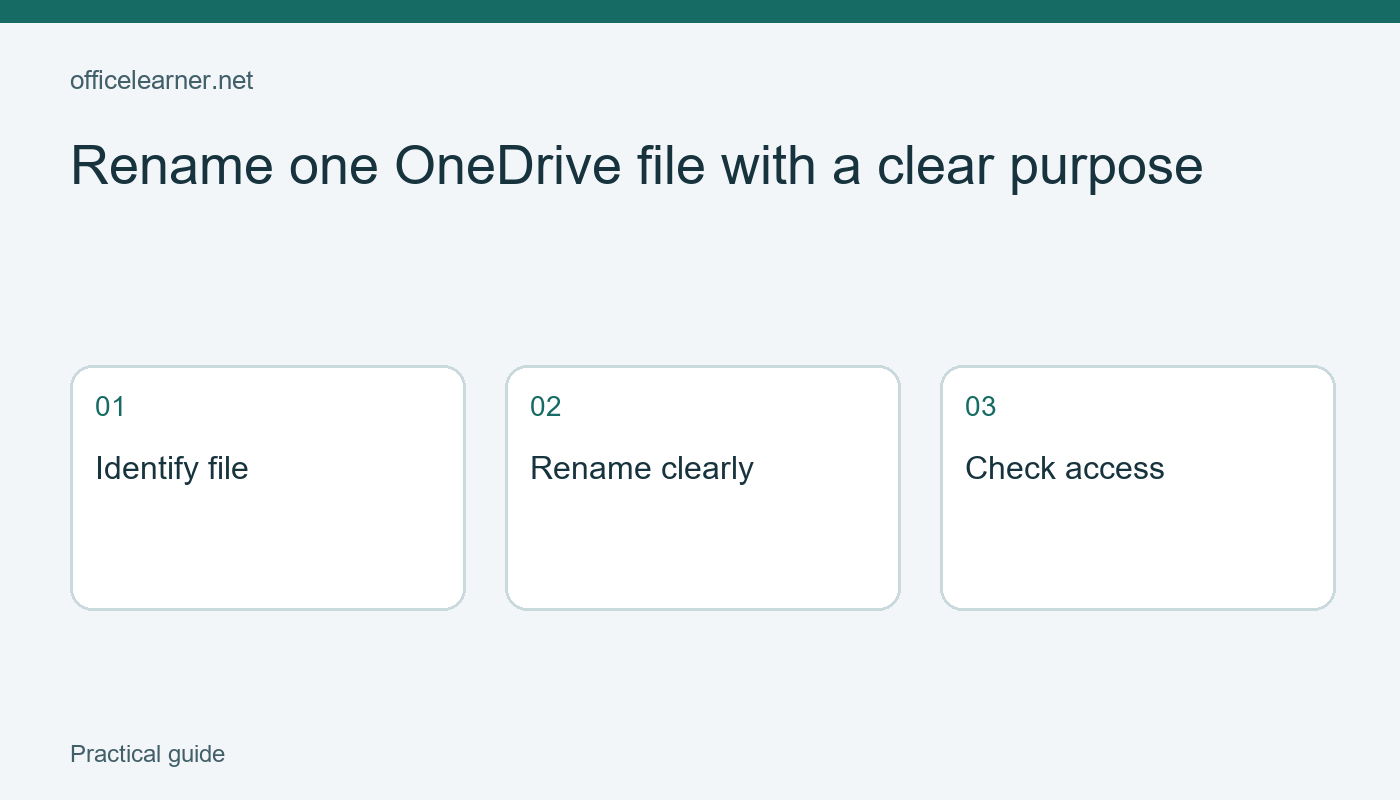
Rename a OneDrive file by selecting the correct item, choosing Rename, and entering a clear new name. For a shared file, also check how collaborators will find it afterward. A useful name describes the document's purpose without relying on someone opening several similarly named files. This walkthrough uses a personal OneDrive web practice folder and a disposable document so that you can learn the selection and verification steps without disrupting a real team's working files.
Choose a file you can safely change
Create a practice document named notes.docx in a folder you control. Put a short sentence inside it identifying it as a workshop planning exercise. Close the document and return to the folder listing. The proposed new name is Workshop supply checklist.docx. It describes the contents more clearly than notes while remaining short enough to recognize in a file list. Do not use a real confidential project name merely to practice changing a filename.
Before renaming, inspect the item's type, location, and modified information. A folder may contain several files called notes with different extensions or purposes. If you are unsure, open the document and confirm its contents, then return to the listing. The small amount of time spent identifying the item is preferable to renaming the wrong file and confusing everyone who uses that folder. A descriptive name helps only when it is attached to the intended document.
Use the rename command
In OneDrive on the web, select the file using its selection control. Choose Rename from the available commands or the item's menu, enter the new name, and confirm. Microsoft's guidance describes selecting a file or folder and then using Rename. The layout can vary between personal and work or school accounts, so read the item menu carefully. This exercise follows the personal-account web experience; an organization may expose different controls or limit what you can change.
After the command completes, locate the item under its new name. If the list is sorted alphabetically, it may move to a different position. Open it and check the sentence inside. This confirms that you renamed the same document rather than creating an empty replacement. Return to the listing once more and confirm the name is spelled as intended. Correct a typing mistake now, while the relationship between the old and new names is still obvious.
Keep the extension and purpose separate
The extension identifies a file's format, while the descriptive part tells a reader what the file is for. Do not change docx to pdf in an attempt to convert a document. Conversion requires an appropriate export or save operation in the application. Depending on the interface, an extension may be hidden or handled separately during renaming. Preserve the existing file type and focus on improving the human-readable part of the name.
Avoid names that imply an approval state the file has not earned. Workshop supply checklist is more honest than Final approved checklist if nobody has approved it. If the team uses explicit version or review labels, follow its established convention. A filename can provide a useful cue, but it does not replace a review process. Several documents called final, final2, and final newest can create more uncertainty than one clearly identified working file.
Respect naming restrictions
OneDrive has restrictions on file and folder names, including certain special characters and leading or trailing spaces. Use ordinary words, spaces, and a modest amount of punctuation in a practice name. If the service rejects a name, read the error rather than repeatedly adding random symbols. The linked Microsoft restrictions page lists the current rules and exceptions. Work or school administrators and older application combinations can impose additional constraints, so a name that works in one context may need adjustment elsewhere.
Keep sensitive details out of filenames when the surrounding folder or sharing context does not justify them. A document can be visible in search results, recent-file lists, or notifications. For a public workshop, a neutral event identifier and document purpose are usually enough for recognition. This is a practical naming habit rather than a promise that filenames are private. Access permissions and the contents of the document still need their own review.
Check the collaboration context
If a file is shared, tell collaborators about a meaningful name change through your normal agreed channel. Existing links and references can behave differently across workflows, so check any important link used in a checklist, email, or project page. Do not promise that every external reference will update automatically. A person who recognizes only the old name may also need help finding the item even when the underlying sharing link continues to work.
Renaming is different from moving. This exercise keeps the file in its current folder. Moving it elsewhere introduces another location change and can complicate the check. Make one change at a time when learning or troubleshooting. If you cannot rename the item, confirm your permissions and whether the file is in the intended account. Do not delete and re-upload a shared file simply to obtain a different name; that can create a separate item and disrupt the workflow.
Test your naming rule
Create two more disposable files called agenda notes and attendance notes. Propose a short naming rule that distinguishes the event and the document's purpose. Apply it to all three practice items, then ask someone to identify the supply checklist from the list alone. Can they find it without opening each document? Record the rule in a folder note if it will be reused. The goal is a name that supports retrieval and collaboration, with the original contents and intended access still verified after the change.