Master Outlook in 2026: 8 Email Productivity Tricks You Are Not Using
Published on officelearner.net | Outlook | May 2026
The average office worker spends over two hours per day managing email. That is more than 500 hours per year. And yet most people use Outlook the same way they did in 2010: open, read, reply, repeat.
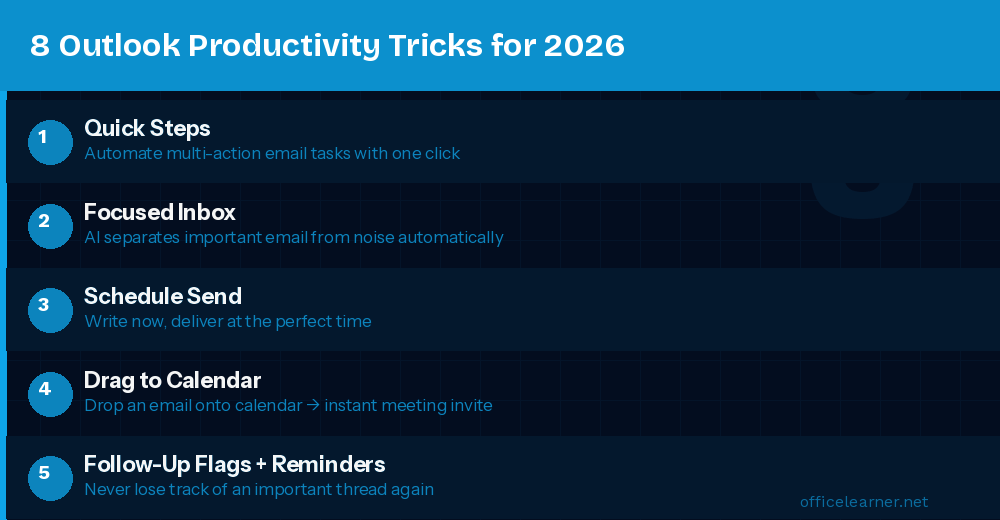
1. Quick Steps: Automate Repetitive Email Actions
Quick Steps let you apply multiple actions to an email with a single click. Create a Quick Step that marks as read, moves to a folder, and flags it all at once. Go to Home then Quick Steps then New Quick Step then Custom.
2. Focused Inbox: Let AI Sort Your Email
Focused Inbox uses AI to separate important emails from lower-priority messages. Enable it via View then Focused Inbox. Right-click any email to move it and teach the AI what belongs where.
3. Schedule Send: Write Now, Deliver Later
Write your email, then click the dropdown arrow next to Send and choose Schedule Send. Pick a date and time for delivery. Perfect for drafting outside working hours.
4. Drag and Drop Email to Calendar
Drag any email from your inbox and drop it onto the Calendar icon. Outlook creates a new calendar event pre-filled with the email subject, body, and attendees. Just set the date and time.
5. Use Rules to Auto-Organize Your Inbox
Outlook Rules let you set automatic conditions such as moving emails from a specific address to a priority folder. Create rules via Home then Rules then Manage Rules and Alerts.
6. Follow-Up Flags and Reminder Dates
Right-click any email and choose Follow Up to add a color-coded flag and set a reminder date. Use red for urgent, yellow for waiting on a response, and green for completed items.
7. Search Folders: Smart Virtual Folders
A Search Folder always shows emails matching specific criteria without physically moving them. Create one via the Folder tab then New Search Folder.
8. Copilot in Outlook: Draft, Summarize, Coach
Use Copilot to draft replies with a single prompt, summarize long email threads in three bullets, and receive coaching on your email tone before you send. Look for the Copilot sparkle icon in any compose window.
Take Back Control of Your Inbox
Start with Quick Steps and Focused Inbox. The goal is not inbox zero. It is inbox clarity.
Visit officelearner.net for more Outlook, Excel, Word, and Copilot guides.