ADVERTISEMENT
  • About
  • Advertise
  • Privacy & Policy
  • Contact
Office Learner
ADVERTISEMENT
  • Home
  • Browse by Category
    • Word
      • Word Basics
      • Word Data Entry
      • Word Formatting
      • Word Templates
      • Word Tips
    • Excel
      • Excel Basics
      • Excel Shortcuts
      • Excel Charts
      • Data Validation
      • Conditional Formatting
      • Data Analysis with Excel
      • Dynamic Arrays
      • Advanced Excel Topics
      • Developing Excel Related Tools
      • Essential Excel Books
      • Excel for Accountants
      • Excel for Finance
      • Excel Functions and Formulas
      • Excel Pivot Tables
      • Excel Power BI
      • Excel Power Query
      • Excel Templates
      • Excel Training & Courses
      • Macros and Excel VBA
    • PowerPoint
      • Animation
      • PowerPoint Basics
      • PowerPoint Templates
  • About
  • Office Books
  • Courses
No Result
View All Result
  • Home
  • Browse by Category
    • Word
      • Word Basics
      • Word Data Entry
      • Word Formatting
      • Word Templates
      • Word Tips
    • Excel
      • Excel Basics
      • Excel Shortcuts
      • Excel Charts
      • Data Validation
      • Conditional Formatting
      • Data Analysis with Excel
      • Dynamic Arrays
      • Advanced Excel Topics
      • Developing Excel Related Tools
      • Essential Excel Books
      • Excel for Accountants
      • Excel for Finance
      • Excel Functions and Formulas
      • Excel Pivot Tables
      • Excel Power BI
      • Excel Power Query
      • Excel Templates
      • Excel Training & Courses
      • Macros and Excel VBA
    • PowerPoint
      • Animation
      • PowerPoint Basics
      • PowerPoint Templates
  • About
  • Office Books
  • Courses
No Result
View All Result
Office Learner
No Result
View All Result
Home Excel

10 Hidden Excel Features That Will Save You Hours Every Week

Tanjila Rashid by Tanjila Rashid
May 27, 2026
in Excel
0
10 Hidden Excel Features That Will Save You Hours Every Week
0
SHARES
1
VIEWS
Share on FacebookShare on Twitter

10 Hidden Excel Features That Will Save You Hours Every Week

Published on officelearner.net | Excel Tips | May 2026

ADVERTISEMENT

Most Excel users only use about 20 percent of the application's full capabilities. The remaining 80 percent is filled with powerful time-saving features that go completely undiscovered.

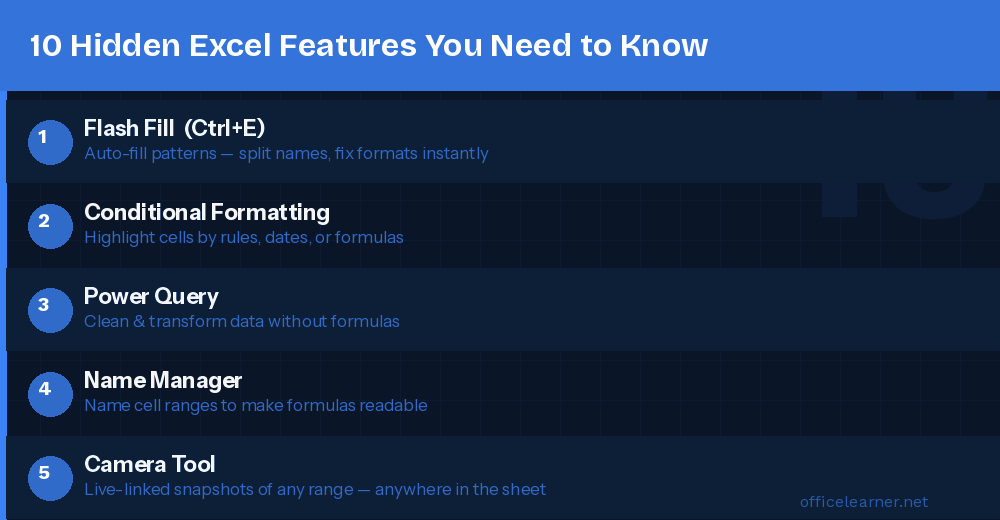
1. Flash Fill (Ctrl+E)

Flash Fill is one of the most underused time-savers in Excel. Type an example of what you want next to your data, then press Ctrl+E. Excel detects the pattern and fills the entire column automatically. No formulas required.

2. Conditional Formatting With Formulas

The real power of conditional formatting comes from custom formulas. For example =TODAY()>D2 highlights all overdue tasks in red. Build traffic-light dashboards, flag duplicates, or color-code entire rows based on any rule you define.

3. Power Query (Get and Transform)

Power Query is Excel built-in data transformation tool. Connect to external sources, clean messy data, reshape tables, and load everything with one click that refreshes at any time. Find it under Data then Get Data.

4. Name Manager for Readable Formulas

Name your cell ranges via Formulas then Name Manager then New. Name ranges like EmployeeID and Salary, then write =XLOOKUP(A2, EmployeeID, Salary) instead of long absolute references. Much cleaner and easier to audit.

5. The Camera Tool

The Camera Tool creates a live linked snapshot of any cell range that updates in real time. Add it via File then Options then Quick Access Toolbar then All Commands then Camera. Perfect for dashboards.

6. Paste Special (Ctrl+Alt+V)

Paste Special gives powerful options: paste Values only to strip formulas, Transpose to flip rows to columns, or Multiply to multiply all pasted values by a number. An essential tool for data manipulation.

7. Go To Special (Ctrl+G)

Press Ctrl+G then click Special to select only blank cells, formulas, constants, or visible cells. Essential when working with filtered tables to avoid pasting hidden rows.

8. Custom Number Formats

Display numbers exactly how you want without changing the underlying value. The format 0.0"x" shows 3.5 as 3.5x. Custom formats are stored in the file and display correctly for all users.

9. Watch Window

The Watch Window under Formulas lets you monitor specific cells from anywhere in the workbook, even across different sheets. Pin your KPI cells and see them update in real time.

10. Workbook Statistics

Check Review then Workbook Statistics for a full count of cells, formulas, tables, and named ranges in your file. Invaluable for auditing large or inherited workbooks.

Start With Just One Feature

Pick the feature that solves your most frequent pain point and start there. Bookmark this post and return to learn the next one each week.

Visit officelearner.net for more Excel tips and tutorials.
ADVERTISEMENT
Previous Post

XLOOKUP vs VLOOKUP: Why You Should Switch Right Now (With Examples)

Next Post

Master Outlook in 2026: 8 Email Productivity Tricks You’re Not Using

Tanjila Rashid

Tanjila Rashid

Next Post

How to Use DPRODUCT Function in Excel (6 Practical Examples)

ADVERTISEMENT
  • Trending
  • Comments
  • Latest
The Evolution of Microsoft Word: A Brief History

The Evolution of Microsoft Word: A Brief History

May 27, 2026

How to Merge and Center Selected Cells in Excel (4 Ways)

May 27, 2026
How to Use Excel SUMIF to Sum Values Greater Than 0

How to Use Excel SUMIF to Sum Values Greater Than 0

May 27, 2026
Copilot in Excel: Analyze Data with Natural Language

SharePoint Copilot: Find & Summarise Docs Instantly

May 27, 2026
Spreadsheet Layout

What is spreadsheet? and how it works!

0
Spreadsheet Layout

Spreadsheet Layout

0
Spreadsheet Layout

IF function of Google Sheets – usage and formula examples

0

5 Google Sheets tricks that you always need!

0
Outlook Copilot Email Summarization: Never Lose Track of Long Threads Again

Outlook Copilot Email Summarization: Never Lose Track of Long Threads Again

June 17, 2026
OneNote Copilot: Capture AI-Powered Meeting Notes Automatically in 2026

OneNote Copilot: Capture AI-Powered Meeting Notes Automatically in 2026

June 17, 2026
Microsoft Loop in 2026: The Collaborative Workspace Replacing Email Threads

Microsoft Loop in 2026: The Collaborative Workspace Replacing Email Threads

June 17, 2026
Word Copilot Draft from Prompt: Write Full Documents in Seconds

Word Copilot Draft from Prompt: Write Full Documents in Seconds

June 17, 2026

Recent News

Outlook Copilot Email Summarization: Never Lose Track of Long Threads Again

Outlook Copilot Email Summarization: Never Lose Track of Long Threads Again

June 17, 2026
OneNote Copilot: Capture AI-Powered Meeting Notes Automatically in 2026

OneNote Copilot: Capture AI-Powered Meeting Notes Automatically in 2026

June 17, 2026
Microsoft Loop in 2026: The Collaborative Workspace Replacing Email Threads

Microsoft Loop in 2026: The Collaborative Workspace Replacing Email Threads

June 17, 2026
Word Copilot Draft from Prompt: Write Full Documents in Seconds

Word Copilot Draft from Prompt: Write Full Documents in Seconds

June 17, 2026
Office Learner

OfficeLearner is a place where you can learn PowerPoint, Excel, Word Data Analysis, and other Office related programs. We provide tips, how to guide and also provide Excel solutions to your business problems

Follow Us

DMCA.com Protection Status

Browse by Category

  • Clipchamp
  • Excel
  • Google Sheets
  • Loop
  • Microsoft 365
  • Microsoft Copilot
  • Microsoft Designer
  • Microsoft Forms
  • Microsoft Loop
  • Microsoft Sway
  • Microsoft Teams
  • Microsoft Viva
  • OneDrive
  • OneNote
  • Outlook
  • Planner
  • Power Automate
  • Power BI
  • PowerPoint
  • SharePoint
  • Teams
  • Word

Recent News

Outlook Copilot Email Summarization: Never Lose Track of Long Threads Again

Outlook Copilot Email Summarization: Never Lose Track of Long Threads Again

June 17, 2026
OneNote Copilot: Capture AI-Powered Meeting Notes Automatically in 2026

OneNote Copilot: Capture AI-Powered Meeting Notes Automatically in 2026

June 17, 2026
  • About
  • Advertise
  • Privacy & Policy
  • Contact

© 2022 OfficeLearner - Free Excel, PowerPoint & Word Tutorial & Online Courses

No Result
View All Result

© 2022 OfficeLearner - Free Excel, PowerPoint & Word Tutorial & Online Courses

This website uses cookies. By continuing to use this website you are giving consent to cookies being used. Visit our Privacy and Cookie Policy.