Creating a compelling PowerPoint presentation used to take hours — choosing layouts, writing slide content, finding images, and aligning everything visually. Microsoft 365 Copilot in PowerPoint changes all of that. In 2025, you can go from a blank file to a polished, professional presentation in minutes. Here’s how to use every Copilot feature in PowerPoint to its full potential.
What Is Copilot in PowerPoint?
Copilot in PowerPoint is an AI assistant embedded directly in the app. It can generate full presentations from a text prompt, add slides on demand, summarize decks, redesign layouts, and help you write speaker notes. It’s powered by the same large language model as Microsoft Copilot (based on OpenAI), but with deep integration into PowerPoint’s design system, themes, and templates.
Copilot is available to Microsoft 365 subscribers with a Copilot add-on license. Look for the Copilot button in the Home ribbon.
Feature 1: Generate a Full Presentation from a Prompt
Click Copilot → Create a presentation about… and type your topic. Be specific for best results. For example:
“Create a 10-slide presentation for a sales team about our new CRM software rollout, covering what’s changing, why it matters, training timeline, and support resources. Use a professional tone.”
Copilot generates a complete deck with slide titles, bullet points, and suggested images. Each slide has a layout chosen to match the content type — title slides, comparison slides, bullet lists, and image slides are selected automatically.
Feature 2: Create Presentations from Existing Documents
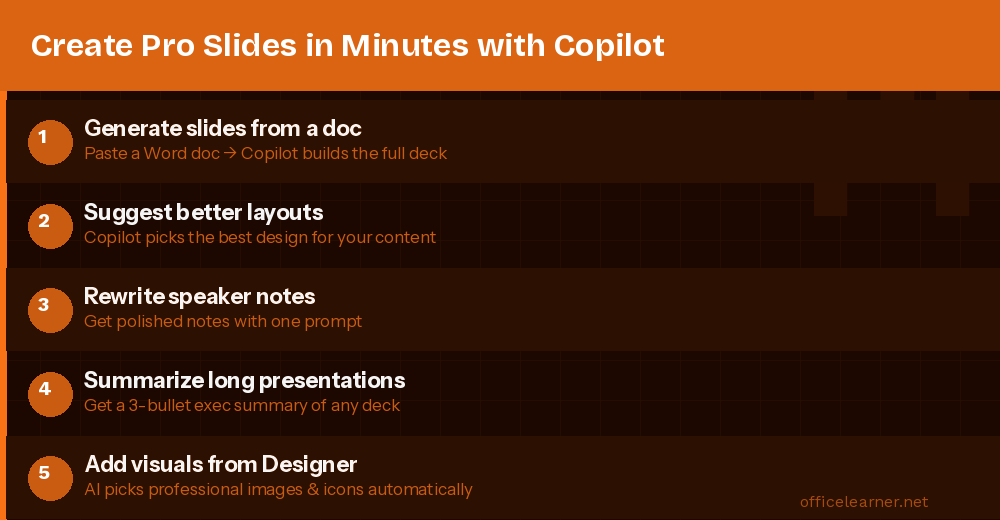
One of Copilot’s most powerful features: turn a Word document, PDF, or other file into a presentation automatically. Click Copilot → Create presentation from file and select your document. Copilot reads the document, extracts key points, and structures them into logical slides. This is perfect for turning reports, meeting notes, or research documents into shareable presentations without starting from scratch.
Feature 3: Add Slides on Demand
Already have a deck but need to expand it? Open the Copilot panel and ask it to add specific slides: “Add a slide summarizing the Q1 financial results with key metrics” or “Add a conclusion slide with three key takeaways from this presentation.” Copilot inserts new slides that match your existing theme and formatting — no manual layout work needed.
Feature 4: Redesign and Reformat Layouts
Select any slide and ask Copilot to redesign it. You can say: “Make this slide more visual”, “Use a two-column layout for this content”, or “Replace this bullet list with icons.” Copilot applies PowerPoint’s Designer suggestions intelligently based on your content, choosing layouts from your current theme that best fit the data.
For a quick full-deck refresh, you can also say: “Apply a more modern and professional design to this presentation.”
Feature 5: Summarize Long Presentations
Working with a deck someone else created? Click Copilot → Summarize this presentation to get a concise overview of what the entire presentation covers. This is invaluable when you inherit a large deck, need to brief someone on its contents quickly, or want to verify your own deck’s narrative flow before a meeting.
Feature 6: Generate Speaker Notes Automatically
Select a slide and ask: “Write speaker notes for this slide that explain each point in detail.” Copilot generates complete speaker notes based on the slide content, giving you a script to practice from or read during remote presentations. You can customize the tone — more conversational for team meetings, more formal for executive presentations.
Feature 7: Ask Questions About Your Presentation
Copilot can answer questions about your own deck: “What are the three main messages of this presentation?” or “Does this presentation have a clear call to action?” This feedback mode helps you identify gaps and weaknesses before you present. Think of it as a pre-presentation review from a smart colleague.
Tips for Getting the Best Results from Copilot in PowerPoint
- Be specific in your prompts: Include audience, purpose, tone, and desired length. “Create a presentation” gives mediocre results. “Create a 8-slide investor pitch for a Series A SaaS startup, formal tone, covering problem, solution, market size, traction, and ask” gives excellent results.
- Use your own documents as input: Creating from a file produces more accurate, relevant content than generating from scratch.
- Iterate: Copilot conversations have context. After generating a deck, ask follow-up questions: “Make slide 3 more concise” or “Add data to support the claims on slide 5.”
- Set your theme first: Apply your company theme or template before generating. Copilot respects the active theme and generates slides that match it.
- Review everything: Copilot occasionally gets facts wrong or includes placeholder statistics. Always review generated content for accuracy before presenting.
Combining Copilot with PowerPoint Designer
PowerPoint Designer (available even without Copilot) suggests professional layouts as you add content. When used together with Copilot, you get AI-generated content AND AI-suggested design in a powerful combination. After Copilot generates a presentation, click on individual slides and check the Designer panel for alternative layout options — often finding an even better visual arrangement.
The Bottom Line
Copilot in PowerPoint is a genuine productivity revolution for anyone who creates presentations regularly. Whether you’re building weekly team updates, pitch decks, training materials, or client presentations, Copilot eliminates the tedious parts — structure, slide layout, initial content — and lets you focus on making the narrative compelling and the data accurate.
Start with the “Create from file” feature on a report or document you already have. Within 10 minutes you’ll have a complete draft deck ready for refinement. That’s the Copilot promise — and in 2025, it fully delivers.