Locate the first hyphen in a workshop label with Power Query
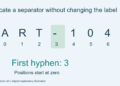
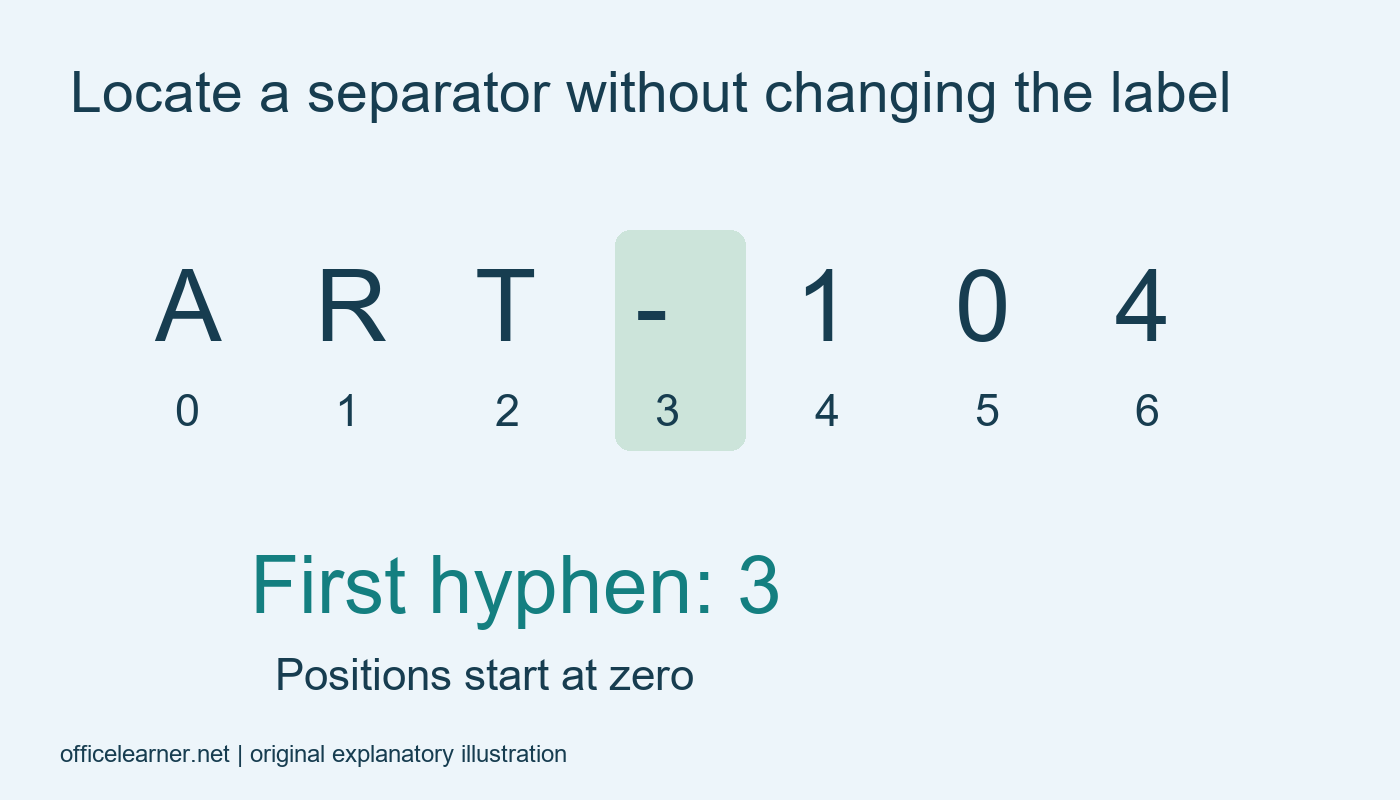
Use Text.PositionOf to locate the first occurrence of a substring in Power Query. For a label such as ART-104, Text.PositionOf("ART-104", "-") returns 3 because positions start at zero. If the substring is absent, the function returns -1. This is useful when inspecting a small collection of labels before deciding whether a delimiter-based transformation is appropriate. A position tells you where a match begins; it does not extract a prefix or prove that a label follows your business rules.
Create a reproducible source table
In Power BI Desktop, use Home, Enter data to create a small table with one text column named Label. Enter ART-104, AB-7, NOHYPHEN, -START, and A-B-C as five separate rows. Name the table LabelPractice. These invented labels deliberately include a missing hyphen, a leading hyphen, and two hyphens. A practice set containing only the expected pattern would hide the cases that make this function worth understanding. Choose Transform Data to inspect the table in Power Query Editor.
Confirm that Label has the Text data type. Preserve the source column and add a separate result column. On Add Column, choose Custom Column, name it FirstHyphen, and enter Text.PositionOf([Label], "-"). The custom-column field expects the expression rather than a complete table query. Accept the dialog and inspect every row. This exercise uses current Power BI Desktop's Power Query Editor and the documented M function. Dialog placement may differ in other Power Query hosts; the M expression is the key behavior to reproduce.
Read the expected positions
Expect 3 for ART-104, 2 for AB-7, -1 for NOHYPHEN, 0 for -START, and 1 for A-B-C. For ART-104, A occupies position zero, R position one, T position two, and the hyphen position three. Write those positions beneath the characters on paper if the result feels off by one. The function reports an index, not a count of characters including the hyphen. That difference matters when you later pass a position into another text operation.
Zero and -1 mean different things. Zero means the hyphen was found at the beginning. Minus one means it was not found at all. Do not replace every value less than one with the same label unless your intended classification truly treats those cases alike. A leading hyphen may be a malformed identifier; a label without any hyphen may be a valid different format. Keep those interpretations separate until the owner of the data defines the accepted patterns.
Decide which occurrence matters
By default, the function finds the first occurrence. In A-B-C, that is the hyphen at position one. Microsoft also documents an optional occurrence argument. To inspect the last hyphen, add another custom column using Text.PositionOf([Label], "-", Occurrence.Last). For A-B-C, expect 3. Compare the two result columns rather than replacing the first. A difference between them reveals that the row contains more than one hyphen, although it does not by itself count all occurrences.
Use the first result for a question about where the initial separator appears and the last result for a question about the final separator. Do not select the last occurrence merely because its answer looks closer to a desired prefix length. Work backward from the intended field definition. For example, a label may contain an internal hyphen as meaningful text. A transformation that assumes every hyphen is structural could damage the label even though Text.PositionOf correctly identifies each requested position.
Handle a changing source deliberately
This exercise uses non-null text values so the basic position behavior stays visible. A production source may contain nulls, numbers, or errors. Do not assume a successful five-row exercise covers those conditions. If nulls are permitted, write the desired rule explicitly before adding error handling. For example, a null Label can remain a null result, while an actual text label without a hyphen retains -1. A missing value and a failed substring search represent different facts about the source.
When you add data-quality handling, inspect the affected rows rather than hiding every error with a single generic replacement. Retain the original Label column so you can compare inputs and outputs after refresh. If the source changes from a literal hyphen to an en dash, the search for "-" will not automatically treat them as identical. Copying an apparently similar mark from a PDF can therefore change the result. Check the actual character before changing the function or declaring the source corrupt.
Validate the inspection step
Count the source rows and confirm the custom-column step keeps all five. Adding a column should not require dropping an inconvenient row. Record the expected five-position sequence in a separate note and compare it after editing the query. If the results change, inspect the Applied Steps order, column names, and the exact substring. Rename the output to reflect its meaning, such as FirstHyphenZeroBased, if that will prevent a colleague from treating the number as a human-friendly character count.
For independent practice, add BOX-02-A and PLAIN. Predict their first and last hyphen positions before refreshing the preview. BOX-02-A should produce first position 3 and last position 6; PLAIN should produce -1 for both searches. Explain why a result of -1 cannot safely become a character count for a later extraction without a decision about missing separators. The goal is an inspectable diagnostic column and a clear next question about the labels, not an automatic cleanup based on assumptions.