

Round measured lengths downward with Power Query Number RoundDown
In Power Query, Number.RoundDown returns the greatest integer less than or equal to a number when you omit the optional digits argument. For a positive measured length of 8.7, the result is 8. This can help produce a conservative whole-unit planning column, provided you retain the original measurement and clearly explain the rule. It is not the same as ordinary rounding to the nearest integer.
Suppose you are recording sample strips for a paper activity. You want to keep the measured length in centimeters and also display a whole-centimeter value that never exceeds the positive measurement. The example is a data transformation exercise, not advice for engineering tolerances or material safety. It shows how a rounding rule changes data and how to inspect that change before using it in a report.
Create a small input table
In Power BI Desktop, use Home and Enter data to create a practice table called StripSamples. Add Sample and LengthCm columns. Enter A with 8.7, B with 8.0, and C with 8.2. Open the table in Power Query Editor using Transform data. Confirm that LengthCm has an appropriate numeric type rather than Text before adding the calculated column.
Your regional settings may use a decimal comma when entering values. Check the actual interpreted numbers in the preview rather than assuming that a typed punctuation mark was understood as intended. A value read as text is a different issue from an unusual rounding result. Solve the data-type or locale problem first, so the function receives the numeric inputs the exercise is intended to compare.
Add a transparent custom column
Choose Add Column, then Custom Column. Name the new column WholeCmDown. Enter Number.RoundDown([LengthCm]) as the custom-column expression. Power Query's custom-column editor expects an M expression, so do not paste an Excel formula beginning with an equals sign unless the particular editor explicitly calls for it. The function name and capitalization should match the documented M function.
Inspect all three rows. A should produce 8, B should remain 8, and C should also produce 8. This tells you that different measured lengths can collapse to the same whole value. Keep LengthCm visible beside WholeCmDown so a reviewer can see what has been discarded. Renaming the original measurement to WholeCm would conceal the transformation and invite incorrect interpretation.
Explain the rounding rule
Compare the result for 8.7 with the result you would expect from rounding to the nearest integer. Nearest-integer rounding would normally lead you toward 9 in this case, while downward rounding gives 8. A report label such as Rounded length is ambiguous. Use a label or note that says rounded downward to whole centimeters, especially when the data will be shared without its query steps.
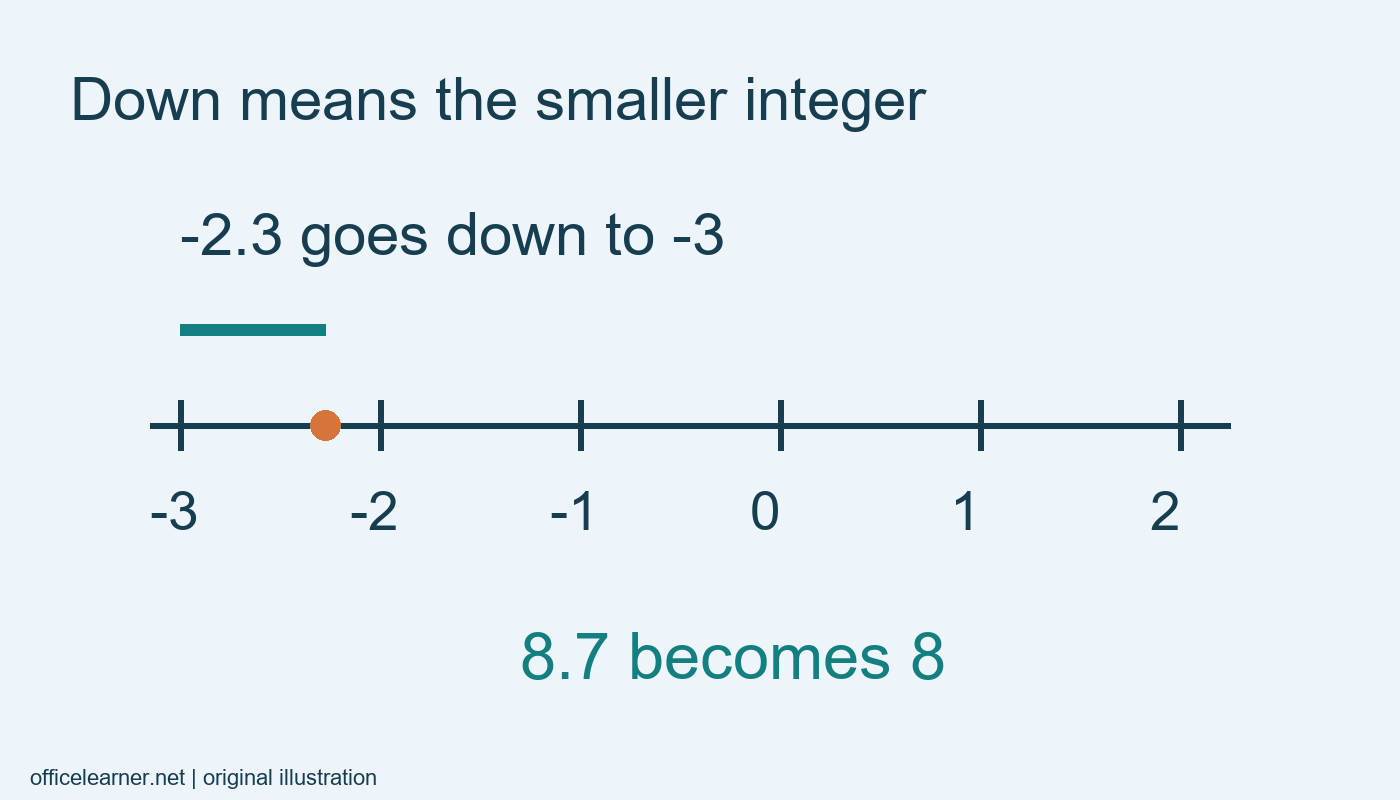
This rule has a useful mathematical boundary: the result is no greater than the input. For a positive number it is easy to visualize on a number line. For a negative number, moving downward means moving toward a smaller, more negative value. Add a temporary row of -2.3 to the practice data and expect -3. Do not assume that downward rounding simply deletes the digits after the decimal point.
Treat missing measurements honestly
Microsoft documents that a null input returns null. A missing length is therefore not automatically turned into zero by this function. That distinction matters: zero is an actual numeric value, while null can mean no measurement was recorded. Keep those meanings separate in the query and in report labels. If your business rules require a replacement value, document that as a separate decision.
To explore this, add a practice row with an empty length and examine its interpreted value in the query. The resulting whole-length field should remain missing when the input is null. If you see an error instead, inspect the previous applied steps and source type. A conversion error upstream is not the same as a null value passed successfully to Number.RoundDown.
Use decimal digits deliberately
The function also accepts an optional digits argument. For example, Number.RoundDown(8.76,1) gives 8.7. That expression retains one decimal position under the downward rule. Do not add this parameter merely to make a table look tidy: changing the stored transformed value differs from changing how many decimal places a report visual displays. Keep the raw input available for later calculations.
If your preview is unexpected, select the custom-column step and read the expression carefully. Check brackets around LengthCm, spelling, and numeric type. Then compare a single known input with a manually reasoned answer before refreshing a large table. Testing a few boundary cases is more informative than judging the transformation from a long column of plausible-looking values.
Validate before loading
Use five practice cases as your final review: 8.7 becomes 8, 8.0 remains 8, 8.2 becomes 8, -2.3 becomes -3, and null remains null. Remove temporary diagnostic rows if they do not belong in your final example, then choose Close and Apply when the transformation is ready. Record the rule in the report documentation so another author understands why the additional column exists.
Number.RoundDown is an M function documented by Microsoft Learn. This walkthrough targets the Power Query Editor in Power BI Desktop; ribbon placement can vary by release, and other Power Query hosts may expose different entry points. The examples are authored checks, not claimed software execution. Which of your measurements needs a downward rule, and which would be better left unchanged with display formatting alone?














