

Flag workshop labels containing a literal word in Power Query
Use Text.Contains in a Power Query custom column to flag text that includes a specific literal string. For example, Text.Contains([Label], "blue", Comparer.OrdinalIgnoreCase) identifies blue anywhere in a non-null label regardless of letter case. It returns a logical result, not a cleaned label or a list of matching positions. Build a small test table before using that flag in a report.
The exercise uses Power BI Desktop Power Query and the documented M function. Power Query experiences in other Microsoft products can have different entry points, and ribbon wording may vary by release. The expression uses M syntax, including its case-sensitive function names. It is not a DAX calculated column. The example is an authored demonstration rather than a claim of testing a particular Power BI version.
Make the source examples intentional
In Power BI Desktop, use Enter Data to create a table with a text column named Label. Add Blue folder, blue tray, red folder, and blueberry card as four rows. Keep the last example even if it seems unusual: it reveals an important limitation of a substring match. Give the table a clear name such as WorkshopLabels and open it in Transform Data.
Confirm that Label has a text data type. For this controlled exercise, none of the four entries should be null. Retain the original column so you can compare the result with the exact input. Avoid beginning with a large operational dataset, where errors, mixed types, and unexpected spaces could obscure what the expression is doing.
Add the case insensitive flag
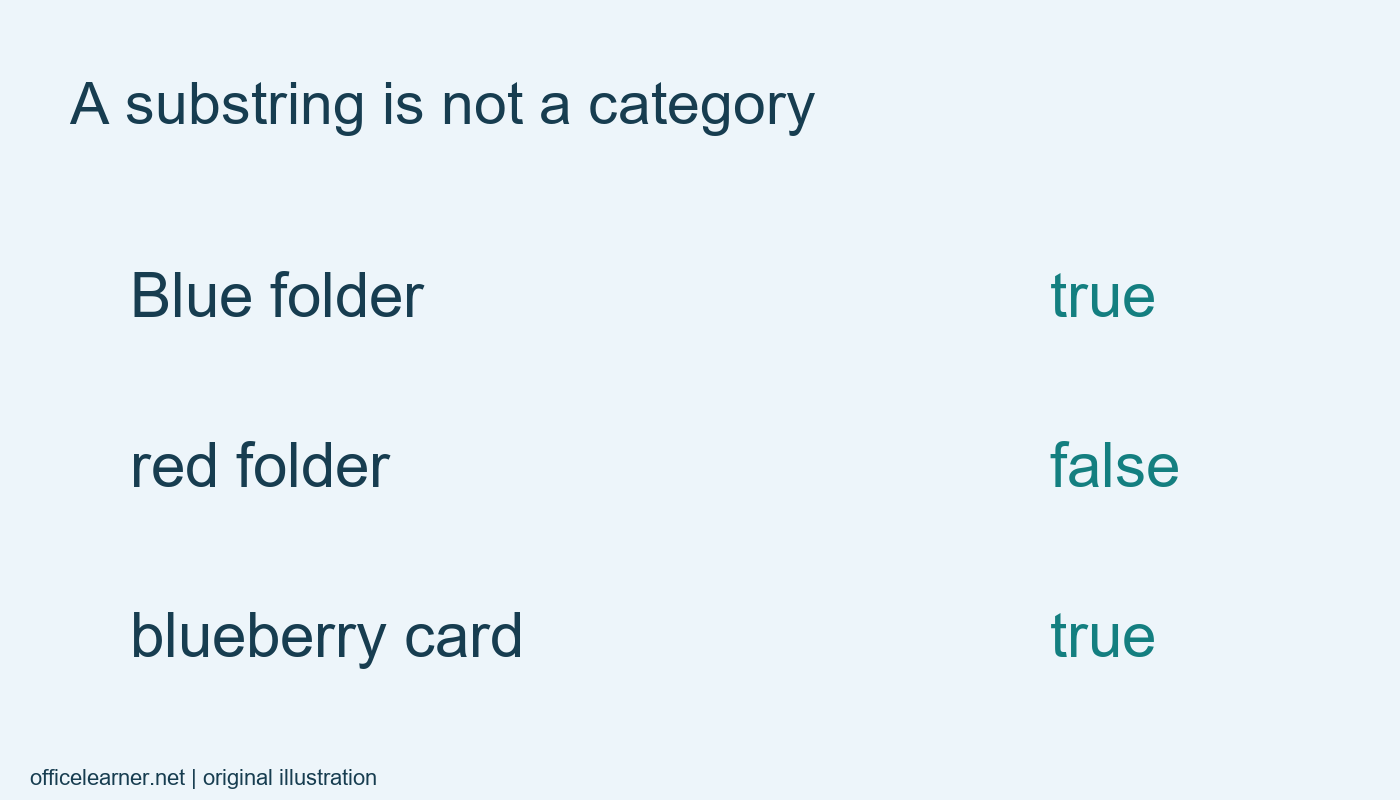
Choose Add Column and Custom Column. Name the output Contains blue. Enter Text.Contains([Label], "blue", Comparer.OrdinalIgnoreCase) as the expression. Depending on the dialog, you normally enter the expression without a leading equals sign. Confirm the column and inspect all four rows. The expected logical results are true, true, false, and true in the order above.
The fourth result is deliberate. The letters blue occur at the start of blueberry, so a literal substring search matches them. If the business question is whether a label contains the standalone color word, this expression is not enough. Define the intended word boundaries and punctuation rules before building a more elaborate solution. Do not call a substring flag a verified color classification.
Compare the default behavior
Create a second temporary custom column with Text.Contains([Label], "blue"). The default comparison distinguishes letter case, so Blue folder and blue tray can produce different results. The explicit OrdinalIgnoreCase comparer makes the case rule visible to the next person maintaining the query. In the first expression, changing the source capitalization does not change whether the substring is found.
Keep a note explaining that decision. A product code may require case-sensitive matching, while an ordinary color word may not. Neither rule is universally correct. An explicit comparer documents which question your query answers, and a table with both uppercase and lowercase examples makes that behavior easier to check after later edits.
Handle missing labels consciously
Microsoft documents that Text.Contains returns null when its first input is null. If missing labels should remain unknown, retaining null can be appropriate. If the report requires a definite false for a missing label, use an explicit guard such as if [Label] = null then false else Text.Contains([Label], "blue", Comparer.OrdinalIgnoreCase). This changes the meaning of missing data and should be a documented choice.
Add a genuinely missing value to a separate test table and verify your selected rule. Do not silently replace null with an empty string throughout the source merely to make one custom column easier to write. Other report calculations may need to distinguish an absent label from an intentionally empty value. Preserve the raw field while investigating those distinctions.
Avoid wildcard assumptions
Text.Contains does not interpret wildcards or regular expressions. Searching for "blue*" looks for a literal asterisk after blue; it does not mean any text beginning with blue. Likewise, punctuation and spaces in the search string matter. A search for " blue " will not match a label starting with blue unless the required leading space is present.
If all results are false, check the spelling and case of the column reference, the chosen comparer, and the exact search text. If rows show errors, inspect their original values and data types. An unexpected number in a text column is a source-quality issue worth understanding. Do not replace every error with false until you know which records would be hidden by that decision.
Review before loading the report
Compare several expected matches and non-matches in the preview, including blueberry card. Remove the temporary comparison column if it is no longer useful, but keep the original Label and the intended final flag. Give the applied step a meaningful name so a later editor can find it. Close and apply only after the small examples behave as expected under your documented rule.
For practice, change the target to folder and predict the four results before editing the expression. Then add Folder stand and folderless card. Which result would a literal substring rule produce, and which would a human category rule require? Write that difference beside the query specification. Understanding the limitation is part of a reliable flag, not a reason to disguise ambiguous matches.














