ADVERTISEMENT
  • About
  • Advertise
  • Privacy & Policy
  • Contact
Office Learner
ADVERTISEMENT
  • Home
  • Browse by Category
    • Word
      • Word Basics
      • Word Data Entry
      • Word Formatting
      • Word Templates
      • Word Tips
    • Excel
      • Excel Basics
      • Excel Shortcuts
      • Excel Charts
      • Data Validation
      • Conditional Formatting
      • Data Analysis with Excel
      • Dynamic Arrays
      • Advanced Excel Topics
      • Developing Excel Related Tools
      • Essential Excel Books
      • Excel for Accountants
      • Excel for Finance
      • Excel Functions and Formulas
      • Excel Pivot Tables
      • Excel Power BI
      • Excel Power Query
      • Excel Templates
      • Excel Training & Courses
      • Macros and Excel VBA
    • PowerPoint
      • Animation
      • PowerPoint Basics
      • PowerPoint Templates
  • About
  • Office Books
  • Courses
No Result
View All Result
  • Home
  • Browse by Category
    • Word
      • Word Basics
      • Word Data Entry
      • Word Formatting
      • Word Templates
      • Word Tips
    • Excel
      • Excel Basics
      • Excel Shortcuts
      • Excel Charts
      • Data Validation
      • Conditional Formatting
      • Data Analysis with Excel
      • Dynamic Arrays
      • Advanced Excel Topics
      • Developing Excel Related Tools
      • Essential Excel Books
      • Excel for Accountants
      • Excel for Finance
      • Excel Functions and Formulas
      • Excel Pivot Tables
      • Excel Power BI
      • Excel Power Query
      • Excel Templates
      • Excel Training & Courses
      • Macros and Excel VBA
    • PowerPoint
      • Animation
      • PowerPoint Basics
      • PowerPoint Templates
  • About
  • Office Books
  • Courses
No Result
View All Result
Office Learner
No Result
View All Result
Home PowerPoint

Hide an optional worked example slide in PowerPoint

Tanjila Rashid by Tanjila Rashid
November 16, 2026
in PowerPoint
0
Hide an optional worked example slide in PowerPoint
0
SHARES
2
VIEWS
Share on FacebookShare on Twitter

Hide an optional worked example slide in PowerPoint

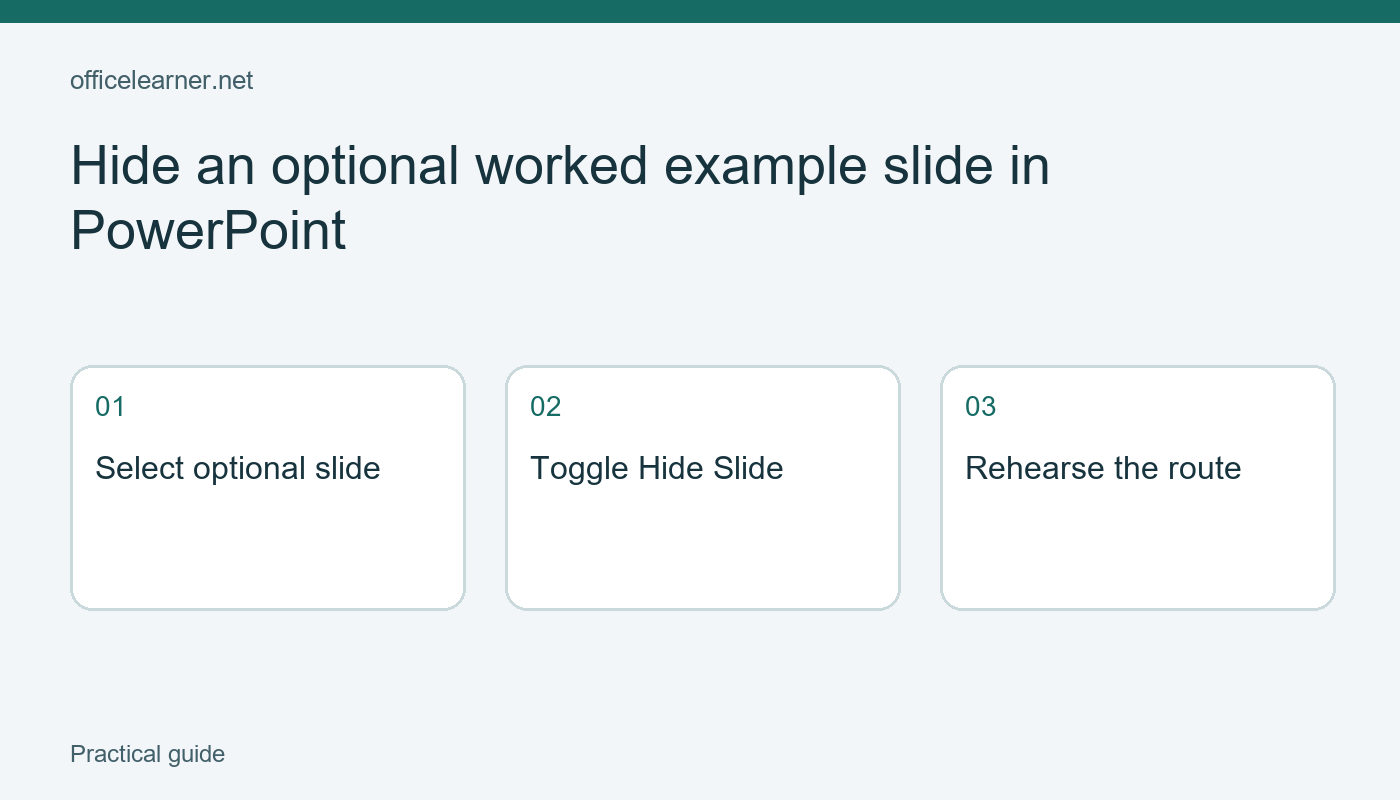
Hide Slide lets you retain an optional slide in a PowerPoint file while skipping it during the normal slide-show sequence. Select the slide thumbnail, open its context menu, and choose Hide Slide. The slide remains editable in the presentation. Use this for an optional explanation, not for confidential information that recipients must never receive.

Imagine a five-slide workshop deck: purpose, instructions, a basic example, an extended example, and a closing question. The extended example is useful for a longer session but unnecessary for a ten-minute introduction. Hiding it allows one maintained deck to support a shorter route, provided you rehearse and check the route before presenting.

Mark the optional material clearly

Save a review copy and identify the extended example by its actual content, not merely its current slide number. Numbers change as slides are inserted. Add a concise speaker note explaining when the optional example is useful, such as when participants ask how the method changes for a second department.

Select only that slide in the thumbnail pane. If multiple thumbnails are selected, the command can affect more material than intended. Open the context menu and choose Hide Slide. Depending on the PowerPoint version and platform, the thumbnail number or icon indicates its hidden state. Microsoft documents this feature across current PowerPoint editions, with interface differences on Windows, Mac, and the web.

Click a neighboring thumbnail and return to the optional slide. Verify that the content is still present and that you did not use Delete Slide by mistake. Hiding preserves the content; deleting removes the slide from that position in the file. Undo an accidental deletion promptly rather than recreating an example from memory.

ADVERTISEMENT

Check the ordinary presentation route

Start the slide show from the beginning in the environment you plan to use. Advance normally through the deck. In the five-slide example, expect to move from the basic example directly to the closing question. The optional extended example should not appear in that ordinary progression, but it should still exist in the editing view afterward.

Read the transition aloud. A closing sentence such as Now that you have seen both examples becomes inaccurate when the second example is hidden. Revise the spoken transition and any visible text so that the short route makes sense on its own. Hiding a slide does not automatically rewrite references on the surrounding slides.

Also inspect any buttons or hyperlinks that navigate to particular slides. A custom navigation path needs its own rehearsal. Do not assume that a hidden flag prevents every possible way of opening that slide. The feature controls normal presentation sequencing; it is not an access-control boundary for content in the file.

Keep optional material available deliberately

If you decide the extended example belongs in the normal sequence again, select its thumbnail and toggle Hide Slide off. Rehearse from the preceding slide to confirm that it appears. Returning a slide to the route is a small edit, but it changes the duration and may require a new transition sentence.

For live questions, PowerPoint can offer ways to navigate to a particular slide during a presentation. The exact controls depend on the platform and presentation mode. Practice that navigation privately before relying on it in front of an audience. If the optional explanation is critical to answering an expected question, keep a simpler verbal explanation ready as well.

Avoid making many hidden slides substitute for a clear structure. A deck containing numerous alternative versions is harder for a colleague to understand. Explain the intended short route in the handoff note and name the optional material by topic. If several audiences need substantially different content, separate reviewed copies may be easier to manage.

Understand sharing and export limits

Anyone who receives the editable presentation may be able to see the hidden slide. Remove sensitive material from the file you share and review that copy independently. Do not treat a hidden slide as erased, redacted, encrypted, or protected by a password. An optional calculation or additional example is an appropriate use; private client details are not.

Printing and exporting involve separate options that can affect whether hidden slides are included. Inspect the actual output rather than inferring its contents from the slide-show route. Open the final PDF or handout, count its pages, and look for the extended example. The file you send should match the audience's needs, regardless of how the live show was configured.

If a colleague reports that an expected example is missing, first establish whether they viewed the slide show, an exported PDF, or the editable deck. These are different artifacts. Record the exact file name and review the relevant route before changing the master presentation. This keeps a small sequencing issue from turning into several inconsistent copies.

Try the five-slide exercise

Make a practice deck with the five topics described above. Hide the extended example, write a transition that works without it, and rehearse the short route. Then unhide it and check the longer route. Ask yourself whether the closing question makes sense after either version and whether a colleague could identify the optional material without your help. Keep the version you intend to present clearly named and review it once more after the final edit.


Sources and related reading

Primary reference

Write PowerPoint Speaker Notes a Colleague Can Use

Tags: hide an optional worked example slidePowerPoint
ADVERTISEMENT
Previous Post

Rename one OneDrive file with a clear purpose

Next Post

Keep only required columns in a Power Query practice table

Tanjila Rashid

Tanjila Rashid

Next Post
Keep only required columns in a Power Query practice table

Keep only required columns in a Power Query practice table

ADVERTISEMENT
  • Trending
  • Comments
  • Latest
10 Microsoft 365 Copilot Features That Transform Word and Outlook in 2025

8 Hidden Excel Features That Power Users Swear By (2026 Edition)

October 8, 2026
PowerPoint Morph Transition Masterclass: Create Cinematic Animations in 2026

PowerPoint Morph Transition Masterclass: Create Cinematic Animations in 2026

October 8, 2026
Excel GROUPBY & PIVOTBY: The New Array Functions That Replace PivotTables

Excel GROUPBY & PIVOTBY: The New Array Functions That Replace PivotTables

October 8, 2026
Excel PIVOTBY Function in 2026: The Ultimate Guide to Dynamic Pivot Analysis Without Pivot Tables

Excel PIVOTBY Function in 2026: The Ultimate Guide to Dynamic Pivot Analysis Without Pivot Tables

October 8, 2026
Spreadsheet Layout

What is spreadsheet? and how it works!

0
Spreadsheet Layout

Spreadsheet Layout

0
Spreadsheet Layout

IF function of Google Sheets – usage and formula examples

0

5 Google Sheets tricks that you always need!

0
Copy a OneNote reference page into a workshop section

Copy a OneNote reference page into a workshop section

November 16, 2026
Trim the edges of text labels in Power Query

Trim the edges of text labels in Power Query

November 16, 2026
Align a slide diagram to a PowerPoint guide

Align a slide diagram to a PowerPoint guide

November 16, 2026
Make a small OneNote table for workshop materials

Make a small OneNote table for workshop materials

November 16, 2026

Recent News

Copy a OneNote reference page into a workshop section

Copy a OneNote reference page into a workshop section

November 16, 2026
Trim the edges of text labels in Power Query

Trim the edges of text labels in Power Query

November 16, 2026
Align a slide diagram to a PowerPoint guide

Align a slide diagram to a PowerPoint guide

November 16, 2026
Make a small OneNote table for workshop materials

Make a small OneNote table for workshop materials

November 16, 2026
Office Learner

OfficeLearner is a place where you can learn PowerPoint, Excel, Word Data Analysis, and other Office related programs. We provide tips, how to guide and also provide Excel solutions to your business problems

Follow Us

DMCA.com Protection Status

Browse by Category

  • Clipchamp
  • Excel
  • Google Sheets
  • Loop
  • Microsoft 365
  • Microsoft Copilot
  • Microsoft Designer
  • Microsoft Forms
  • Microsoft Loop
  • Microsoft Sway
  • Microsoft Teams
  • Microsoft Viva
  • Microsoft Whiteboard
  • OneDrive
  • OneNote
  • Outlook
  • Planner
  • Power Apps
  • Power Automate
  • Power BI
  • PowerPoint
  • SharePoint
  • Teams
  • Visio
  • Word

Recent News

Copy a OneNote reference page into a workshop section

Copy a OneNote reference page into a workshop section

November 16, 2026
Trim the edges of text labels in Power Query

Trim the edges of text labels in Power Query

November 16, 2026
  • About
  • Advertise
  • Privacy & Policy
  • Contact

© 2022 OfficeLearner - Free Excel, PowerPoint & Word Tutorial & Online Courses

No Result
View All Result

© 2022 OfficeLearner - Free Excel, PowerPoint & Word Tutorial & Online Courses

This website uses cookies. By continuing to use this website you are giving consent to cookies being used. Visit our Privacy and Cookie Policy.