ADVERTISEMENT
  • About
  • Advertise
  • Privacy & Policy
  • Contact
Office Learner
ADVERTISEMENT
  • Home
  • Browse by Category
    • Word
      • Word Basics
      • Word Data Entry
      • Word Formatting
      • Word Templates
      • Word Tips
    • Excel
      • Excel Basics
      • Excel Shortcuts
      • Excel Charts
      • Data Validation
      • Conditional Formatting
      • Data Analysis with Excel
      • Dynamic Arrays
      • Advanced Excel Topics
      • Developing Excel Related Tools
      • Essential Excel Books
      • Excel for Accountants
      • Excel for Finance
      • Excel Functions and Formulas
      • Excel Pivot Tables
      • Excel Power BI
      • Excel Power Query
      • Excel Templates
      • Excel Training & Courses
      • Macros and Excel VBA
    • PowerPoint
      • Animation
      • PowerPoint Basics
      • PowerPoint Templates
  • About
  • Office Books
  • Courses
No Result
View All Result
  • Home
  • Browse by Category
    • Word
      • Word Basics
      • Word Data Entry
      • Word Formatting
      • Word Templates
      • Word Tips
    • Excel
      • Excel Basics
      • Excel Shortcuts
      • Excel Charts
      • Data Validation
      • Conditional Formatting
      • Data Analysis with Excel
      • Dynamic Arrays
      • Advanced Excel Topics
      • Developing Excel Related Tools
      • Essential Excel Books
      • Excel for Accountants
      • Excel for Finance
      • Excel Functions and Formulas
      • Excel Pivot Tables
      • Excel Power BI
      • Excel Power Query
      • Excel Templates
      • Excel Training & Courses
      • Macros and Excel VBA
    • PowerPoint
      • Animation
      • PowerPoint Basics
      • PowerPoint Templates
  • About
  • Office Books
  • Courses
No Result
View All Result
Office Learner
No Result
View All Result
Home Microsoft 365

Make a small OneNote table for workshop materials

Tanjila Rashid by Tanjila Rashid
November 16, 2026
in Microsoft 365
0
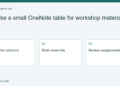
Make a small OneNote table for workshop materials
0
SHARES
1
VIEWS
Share on FacebookShare on Twitter

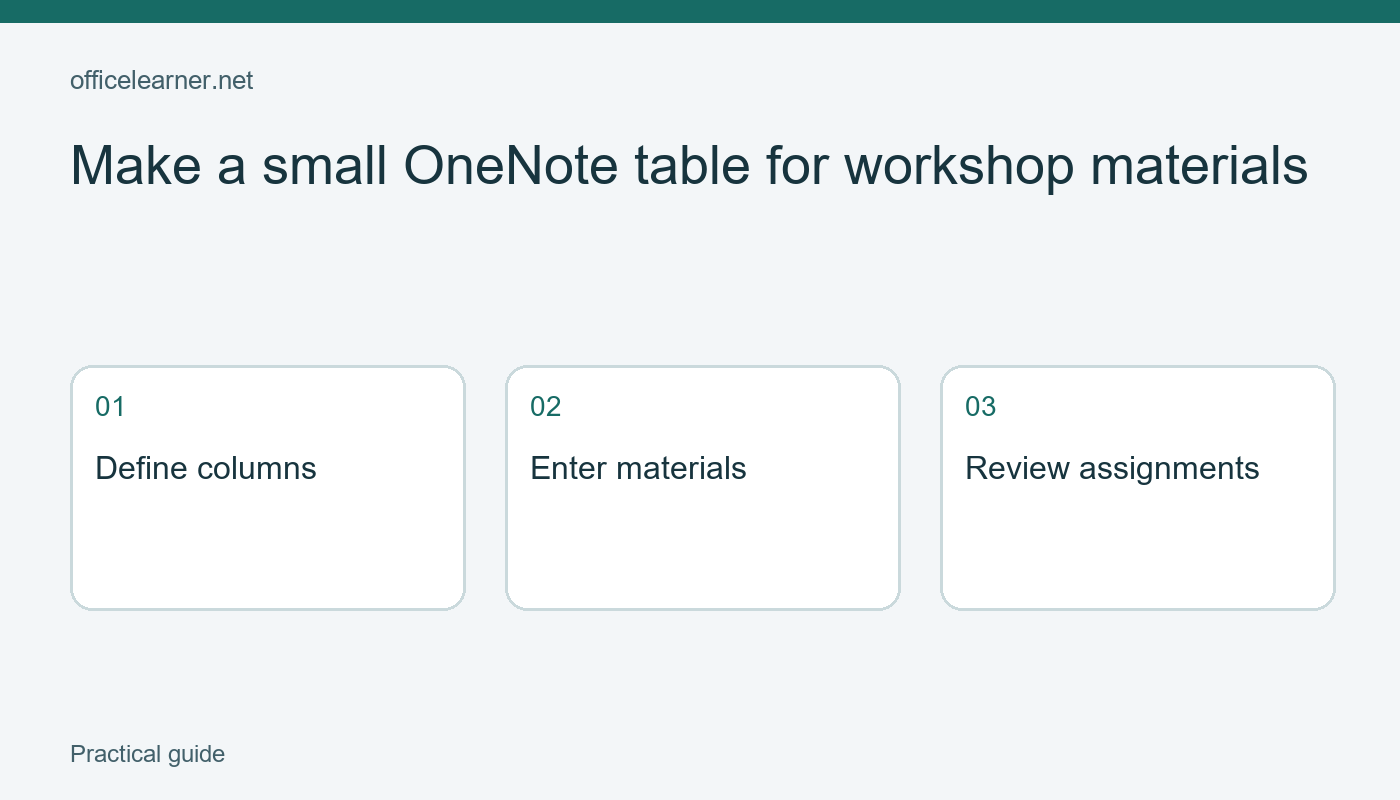
Make a small OneNote table for workshop materials

Use a small OneNote table when you need to compare workshop materials across the same few fields. Put one material on each row and use columns for the item, required quantity, and preparation note. A table makes those repeated records easier to scan than several paragraphs containing the same kinds of information.

This guide creates a fictional materials note for a paper-model workshop. It is a manual planning aid, not an inventory database or an automatically calculated stock sheet. The example uses ordinary OneNote table features documented by Microsoft. Menu locations can differ between current Windows, Mac, and web versions, so review the commands available in the application you use.

Decide what one row represents

Create a new page called Paper model workshop materials. Write a sentence at the top stating that the plan is for six participants and that quantities are preparation targets. That sentence gives the numbers context. Without it, a colleague cannot tell whether six sheets means six per person or six for the entire group.

Use three columns named Material, Total needed, and Preparation note. Each row will represent one type of material for the whole session. Do not mix participant names, room bookings, and materials into the same row structure. If you need a separate attendee list, create a separate note rather than forcing unrelated records into this table.

ADVERTISEMENT

Choose familiar items: plain paper, card templates, and pencils. Keep the first version deliberately small so you can assess whether the table helps. A note with three clear rows is easier to review than an elaborate template full of unused fields. Add further columns only when they answer a real preparation question.

Insert and populate the table

Place the cursor beneath the introductory sentence. Use Insert, Table and choose a three-column table with space for a header and the three materials. The table insertion interface differs by platform; some editions offer a size grid. If you insert too few rows, add another row using the table commands available after clicking inside it.

Enter the headings in the first row. In the next rows, enter Plain paper with 12 sheets and Two per participant; Card templates with 6 copies and One per participant; and Pencils with 6 and Check that each writes. The quantities are original planning examples, not a universal recommendation for every workshop.

Read each row from left to right. Twelve sheets should belong to plain paper, not to the templates. Click outside the table and scan it again as a colleague would. Misaligned content can be hard to notice while the cursor remains in the cell you just edited. Correct a misplaced value before adding more information.

Keep quantities understandable

Write units explicitly when a number could be ambiguous. Twelve sheets and six copies are clearer than bare numbers in this note. Because the table is for manual coordination rather than calculation, text units are useful. If you later move the information into a spreadsheet, you may prefer separate numeric and unit columns for arithmetic.

If the group expands to eight participants, revise the context sentence first. Then change plain paper to 16 sheets, templates to 8 copies, and pencils to 8. OneNote should not be assumed to calculate these changes automatically. Read every row after changing the attendance assumption; otherwise the heading and the body may describe different plans.

Use a short preparation note for a concrete action. Check that each writes is more useful than Ready unless someone has actually checked the pencils. Avoid implying completion through formatting alone. If you need to track completion, add a clearly defined field or a separate checklist and explain who updates it.

Edit structure carefully

When you click inside a table, OneNote exposes table-related commands. Use those commands to add or delete rows and columns. Before deleting a column, check whether it contains useful notes further down the table. In a long note, information outside the immediate view can be easy to overlook.

If a cell becomes a long paragraph, ask whether the explanation belongs beneath the table instead. Tables work well for comparable short records. They are less comfortable for several detailed instructions squeezed into narrow columns. Move a long template-printing procedure into a paragraph and keep only a short reference in the preparation cell.

Review the note in the device or window size a collaborator is likely to use. Wide tables can require horizontal movement on smaller screens. This example uses three columns partly to keep the comparison manageable. If the note will often be read on a phone, shorter labels and a separate explanatory paragraph may be more practical.

Share and review the planning note

Before sharing a notebook or page through the options your account permits, check the intended audience and existing permissions. A table does not create a separate permission boundary within a notebook. Keep this practice page free of private attendee information and review your organization's sharing rules for real workshop notes.

For a reader exercise, plan a different six-person activity using four material rows. State the attendance assumption, include a unit for each quantity, and write one actionable preparation note per row. Then change the attendance to nine and identify every cell that needs a manual update. Could another organizer understand the plan without asking what your numbers represent?


Sources and related reading

Primary reference

Make a manual workshop checklist in OneNote

Tags: make a small onenote table for workshop materialsMicrosoft 365
ADVERTISEMENT
Previous Post

Keep only required columns in a Power Query practice table

Next Post

Align a slide diagram to a PowerPoint guide

Tanjila Rashid

Tanjila Rashid

Next Post
Align a slide diagram to a PowerPoint guide

Align a slide diagram to a PowerPoint guide

ADVERTISEMENT
  • Trending
  • Comments
  • Latest
10 Microsoft 365 Copilot Features That Transform Word and Outlook in 2025

8 Hidden Excel Features That Power Users Swear By (2026 Edition)

October 8, 2026
PowerPoint Morph Transition Masterclass: Create Cinematic Animations in 2026

PowerPoint Morph Transition Masterclass: Create Cinematic Animations in 2026

October 8, 2026
Excel GROUPBY & PIVOTBY: The New Array Functions That Replace PivotTables

Excel GROUPBY & PIVOTBY: The New Array Functions That Replace PivotTables

October 8, 2026
Excel PIVOTBY Function in 2026: The Ultimate Guide to Dynamic Pivot Analysis Without Pivot Tables

Excel PIVOTBY Function in 2026: The Ultimate Guide to Dynamic Pivot Analysis Without Pivot Tables

October 8, 2026
Spreadsheet Layout

What is spreadsheet? and how it works!

0
Spreadsheet Layout

Spreadsheet Layout

0
Spreadsheet Layout

IF function of Google Sheets – usage and formula examples

0

5 Google Sheets tricks that you always need!

0
Copy a OneNote reference page into a workshop section

Copy a OneNote reference page into a workshop section

November 16, 2026
Trim the edges of text labels in Power Query

Trim the edges of text labels in Power Query

November 16, 2026
Align a slide diagram to a PowerPoint guide

Align a slide diagram to a PowerPoint guide

November 16, 2026
Make a small OneNote table for workshop materials

Make a small OneNote table for workshop materials

November 16, 2026

Recent News

Copy a OneNote reference page into a workshop section

Copy a OneNote reference page into a workshop section

November 16, 2026
Trim the edges of text labels in Power Query

Trim the edges of text labels in Power Query

November 16, 2026
Align a slide diagram to a PowerPoint guide

Align a slide diagram to a PowerPoint guide

November 16, 2026
Make a small OneNote table for workshop materials

Make a small OneNote table for workshop materials

November 16, 2026
Office Learner

OfficeLearner is a place where you can learn PowerPoint, Excel, Word Data Analysis, and other Office related programs. We provide tips, how to guide and also provide Excel solutions to your business problems

Follow Us

DMCA.com Protection Status

Browse by Category

  • Clipchamp
  • Excel
  • Google Sheets
  • Loop
  • Microsoft 365
  • Microsoft Copilot
  • Microsoft Designer
  • Microsoft Forms
  • Microsoft Loop
  • Microsoft Sway
  • Microsoft Teams
  • Microsoft Viva
  • Microsoft Whiteboard
  • OneDrive
  • OneNote
  • Outlook
  • Planner
  • Power Apps
  • Power Automate
  • Power BI
  • PowerPoint
  • SharePoint
  • Teams
  • Visio
  • Word

Recent News

Copy a OneNote reference page into a workshop section

Copy a OneNote reference page into a workshop section

November 16, 2026
Trim the edges of text labels in Power Query

Trim the edges of text labels in Power Query

November 16, 2026
  • About
  • Advertise
  • Privacy & Policy
  • Contact

© 2022 OfficeLearner - Free Excel, PowerPoint & Word Tutorial & Online Courses

No Result
View All Result

© 2022 OfficeLearner - Free Excel, PowerPoint & Word Tutorial & Online Courses

This website uses cookies. By continuing to use this website you are giving consent to cookies being used. Visit our Privacy and Cookie Policy.