
Standardize workshop codes with Text Upper in Power Query
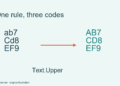
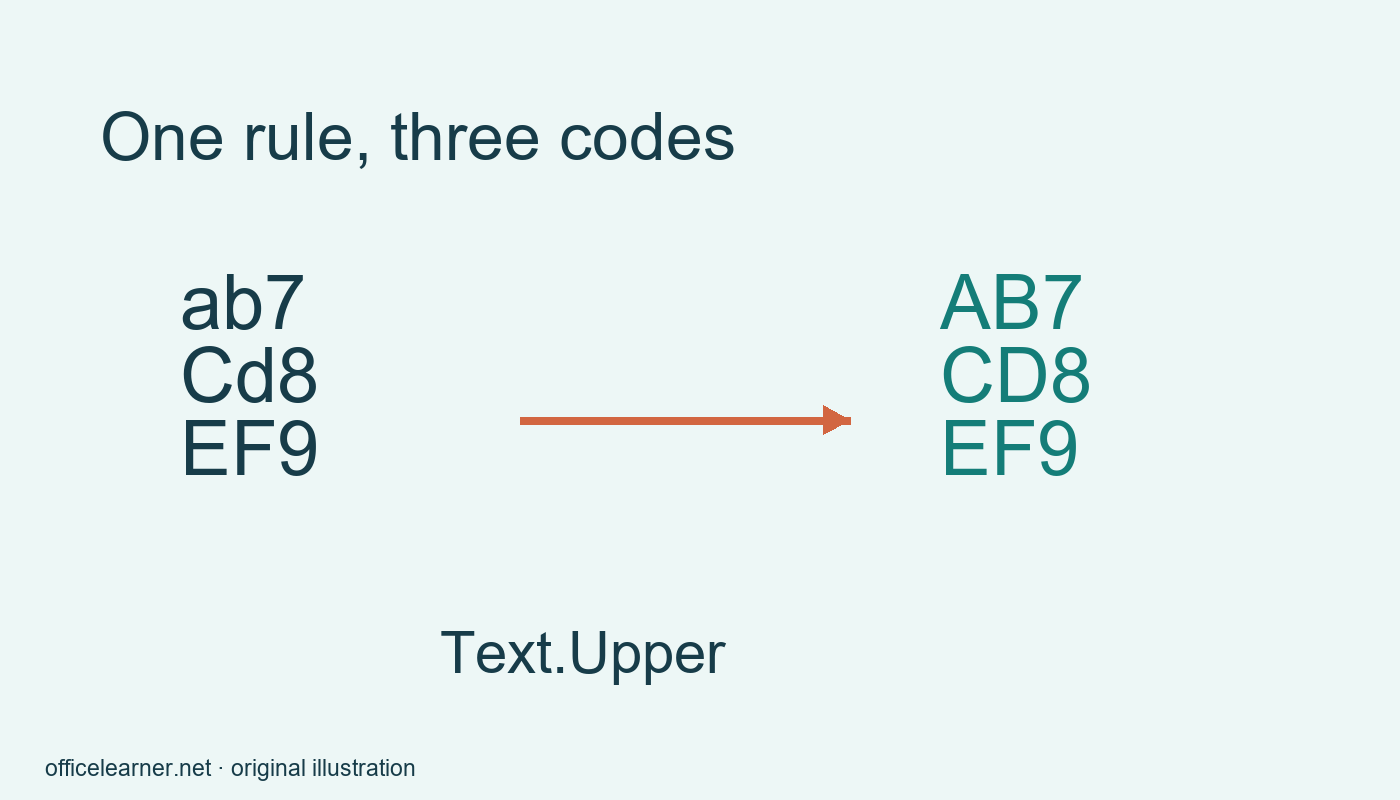
Use Text.Upper in Power Query to produce uppercase versions of workshop codes while preserving the original values for review. In a custom column, Text.Upper([Code], "en-US") converts the text in Code using an explicit culture. For the fictional code ab7, the expected result is AB7. This is a transformation of letters, not a check that a code exists or is valid in a real inventory system.
The example is intended for Power Query Editor in current Power BI Desktop. Power Query also appears in other Microsoft products, but menus and loading steps differ. M function names remain code identifiers, while interface labels can be localized. Microsoft documents Text.Upper with nullable text input and an optional culture argument. The exercise uses simple Latin letters and digits to keep the expected results easy to inspect. Do not infer behavior for every writing system from these three examples.
Enter an original practice table
In a practice Power BI file, use Enter data to create a small table with a column named Code. Add ab7, Cd8, and EF9 on separate rows. Name the table WorkshopCodes and open its query in Power Query Editor. Check that Code has the Text data type. These are fictional labels with no connection to customer records. Using a tiny table makes it possible to compare every original value with its transformed result before you apply the idea elsewhere.
Choose Add Column and Custom Column. Name the new column CodeUpper. In its expression box enter Text.Upper([Code], "en-US"). Use the exact column name, including its capitalization, and use straight quotation marks around the culture name. Confirm the dialog. The new values should be AB7, CD8, and EF9. Keep Code visible beside CodeUpper for this exercise. A second column is helpful because it preserves the evidence needed to explain what changed and what stayed the same.
Read the results as a transformation
The first row changes both letters to uppercase while leaving the digit alone. The second row changes the lowercase d while retaining the already uppercase C. The third row remains visually unchanged because its letters were already uppercase. Compare these cases deliberately. A transformation that leaves some rows unchanged is not necessarily failing; it may simply be receiving values that already meet its formatting rule. The expected outcomes should follow the input, not an assumption that every row must look different.
The function does not remove leading spaces, insert missing digits, or verify that a workshop code has been approved. If the source contains ab 7 with an internal space, uppercasing alone does not make it identical to AB7. Decide separately whether spaces are meaningful. Avoid combining several cleaning operations at once while learning, because a surprising result becomes harder to diagnose. A narrow step with an accurate name is easier to review than an unexplained collection of transformations.
Choose a rule before changing a real query
Confirm with the data owner that capitalization is a presentation convention rather than part of the identifier’s meaning. In some systems, differently cased strings can represent different things. Converting both to uppercase could hide that distinction. Keep the source column and inspect the relationship between original and standardized values before using the output in joins, grouping, or reporting. A visually tidy code is not evidence that two records should be treated as the same record.
An explicit culture makes the intention clearer, but it does not remove the need to understand the source language. Microsoft’s optional culture parameter exists because text conversion can be culture dependent. The simple English-language labels here do not cover every cultural casing rule. If your data contains names or multilingual text, obtain suitable examples and confirm the desired behavior before adopting a conversion. Workshop identifiers and personal names deserve different editorial and data-quality decisions.
Diagnose errors at the expression boundary
If the custom column shows errors, check the input column’s type and spelling first. A reference to [Codes] will not select a column actually named Code. Typographic quotation marks copied from a document may also break a formula. Retype the expression in the editor using plain punctuation. If the input contains nontext values, investigate why and decide whether a type conversion is appropriate rather than silently forcing everything into a text label. Errors can reveal a source problem that needs attention.
If you do not see the added column in your report, remember that editor changes and the report model are separate stages. In Power BI Desktop, use Close and Apply when the preview is correct and allow the changes to load. This is a local practice file, so no scheduled refresh or service permissions are required. In an existing report, understand refresh dependencies before changing a shared query. The guide does not claim to test service refresh or every connector’s evaluation behavior.
Extend the exercise carefully
Add a fourth practice value, gH10, and predict GH10. Add a fifth value, AB 11, and predict AB 11 with the space retained. Refresh or reopen the entered-data step as appropriate to your practice workflow and inspect the output. Can you explain why uppercasing did not remove that space? Record the expected results in a note outside the query so another learner can reproduce the check without treating the preview as an unexplained authority.
Before saving, rename the added step descriptively if your workflow allows it and leave the original Code column available for comparison. Ask a reader to identify one change the function makes and two changes it does not make. The useful result is a documented capitalization rule applied to a small reproducible table. It is not a general promise that uppercase data is clean, unique, complete, or ready for use as a relationship key in a production model.