
Copy a OneNote reference page into a workshop section
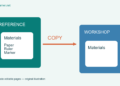
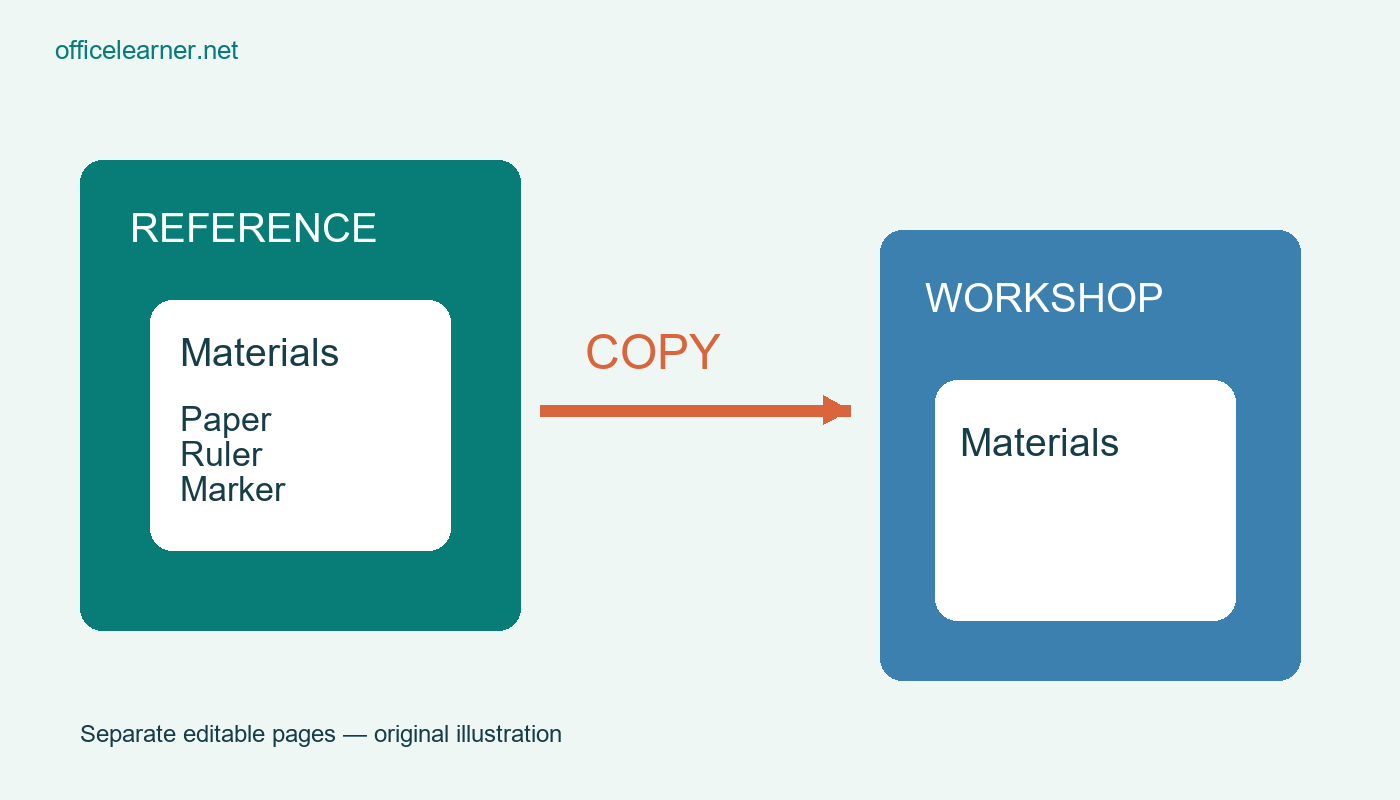
Copy a OneNote page when a workshop needs its own editable version of a reference note and the original should stay in its existing section. In desktop OneNote, use the page's Move or Copy command, choose the destination section, and select Copy. Then verify both locations. A copied page is a separate working note; later edits to the original should not be treated as automatic updates to the copy.
Prepare a small practice notebook
Open desktop OneNote with a notebook you are allowed to edit. Create two practice sections called Reference and Workshop. In Reference, make a page named Materials example. Add three ordinary lines: Paper strips, Ruler, and Marker. Below them write Original reference for practice. Avoid private information, shared meeting details, embedded files, and protected content in this exercise. A small plain page makes it easy to see whether copying preserves the material you actually need.
Give the notebook time to save and sync if it is stored online. Check that both sections are available in the application before attempting the copy. OneNote's layout varies between Windows, Mac, and web versions, and page navigation may appear in different places. This walkthrough focuses on the desktop page command described in Microsoft's organizing guidance. Use the equivalent documented command in your installed version rather than assuming all clients have identical menus.
Copy the page deliberately
Right click the Materials example page tab or page entry and choose Move or Copy. In the destination dialog, expand the appropriate notebook if necessary and select Workshop. Read the destination section name before confirming. Choose Copy rather than Move because you want the reference page to remain in place. If your version provides separate move and copy menu items, select the copy action and follow its destination picker. The underlying decision is the same.
Open Workshop and find the copied page. Check its title and all three material lines. Return to Reference and confirm that Materials example is still there. This two location check catches the most consequential mistake: accidentally moving the original instead of making a second version. If the original appears missing, investigate the chosen action and destination before creating another copy. Repeating the action without checking can leave several confusing versions scattered across sections.
Make the workshop copy identifiable
Rename the copied page Materials for Tuesday workshop. Add a short note identifying when you copied it and why. For example, write Working copy prepared for the paper strip session on 16 November. That note is an editorial convention for this exercise, not a OneNote feature that creates a live connection. Keep the source page title or section name in the note if another person may need to locate the original later.
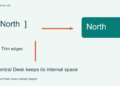
Change Marker to Blue marker on the workshop page. Then open the original reference and confirm its line still says Marker. This small controlled edit demonstrates the relationship between the pages. The purpose is to create a useful independent variation, not to establish synchronization. If your team actually needs one authoritative page that everyone always sees, consider linking to the original instead of distributing copies that can drift apart over time.
Decide what belongs in a copy
A workshop note might need only a concise checklist and a local timing note. A copied page can carry more material than intended, particularly if the original has long notes or attachments. Review the whole page before sharing its section. Remove irrelevant content from the working copy after confirming the original remains intact. Do not assume that copying changes notebook permissions or makes sensitive information safe to distribute to a broader audience.
For shared notebooks, consider who can access the destination. Moving or copying a page is a content organization action, not a privacy review. If another person is editing the source at the same time, check the state of the source and the copy after synchronization. Your workshop convention should say which page owns subsequent corrections. Otherwise one colleague may improve the reference while another continues using an older working copy without realizing that the materials list changed.
Handle missing destinations and duplicates
If Workshop is not listed, verify that its notebook is open and that you have access to edit it. If the destination page does not appear immediately, check the selected section and the application's synchronization status before retrying. A temporary network issue should not be answered with repeated blind copies. Search for the page title if necessary. Once you locate the result, inspect its contents rather than relying on the title alone as evidence of a successful copy.
When two copies exist, compare their contents and identify the intended working version before deleting anything. A clearer title and a short source note can prevent this problem. Keep the practice sections until you have understood the behavior in your client. Microsoft 365 accounts, organization policies, and OneNote versions can affect available notebook locations, but this exercise requires no Copilot feature, subscription AI function, or automated workflow beyond ordinary page organization.
Try a second workshop variation
Create another practice destination for a different session and copy the original reference again. Change only the quantity note in that second version. Can you explain which page is authoritative, which copies serve individual events, and how you would communicate a correction to all workshop organizers? Write a two sentence rule on the reference page. That simple rule is often more useful than making additional copies without deciding how they will be maintained.