
Trim the edges of text labels in Power Query
Use Text.Trim in Power Query to remove whitespace from the beginning and end of a text label before loading a practice table into Power BI. Preserve the raw value in another column while you review the result. Trimming is useful for labels copied with accidental padding, but it does not remove ordinary spaces inside a name. It also does not prove that two labels refer to the same person, product, or category.
Create a tiny inspectable query
Open a practice Power BI Desktop file and choose Transform data to enter Power Query Editor. Create a blank query and open Advanced Editor. For a reproducible sample, use this M expression as the complete query: let Source = #table(type table [RawLabel = text], {{" North"}, {"South "}, {" Central Desk "}, {"North"}}), Result = Table.AddColumn(Source, "TrimmedLabel", each Text.Trim([RawLabel]), type text) in Result. This creates four invented labels and adds a separate output column.
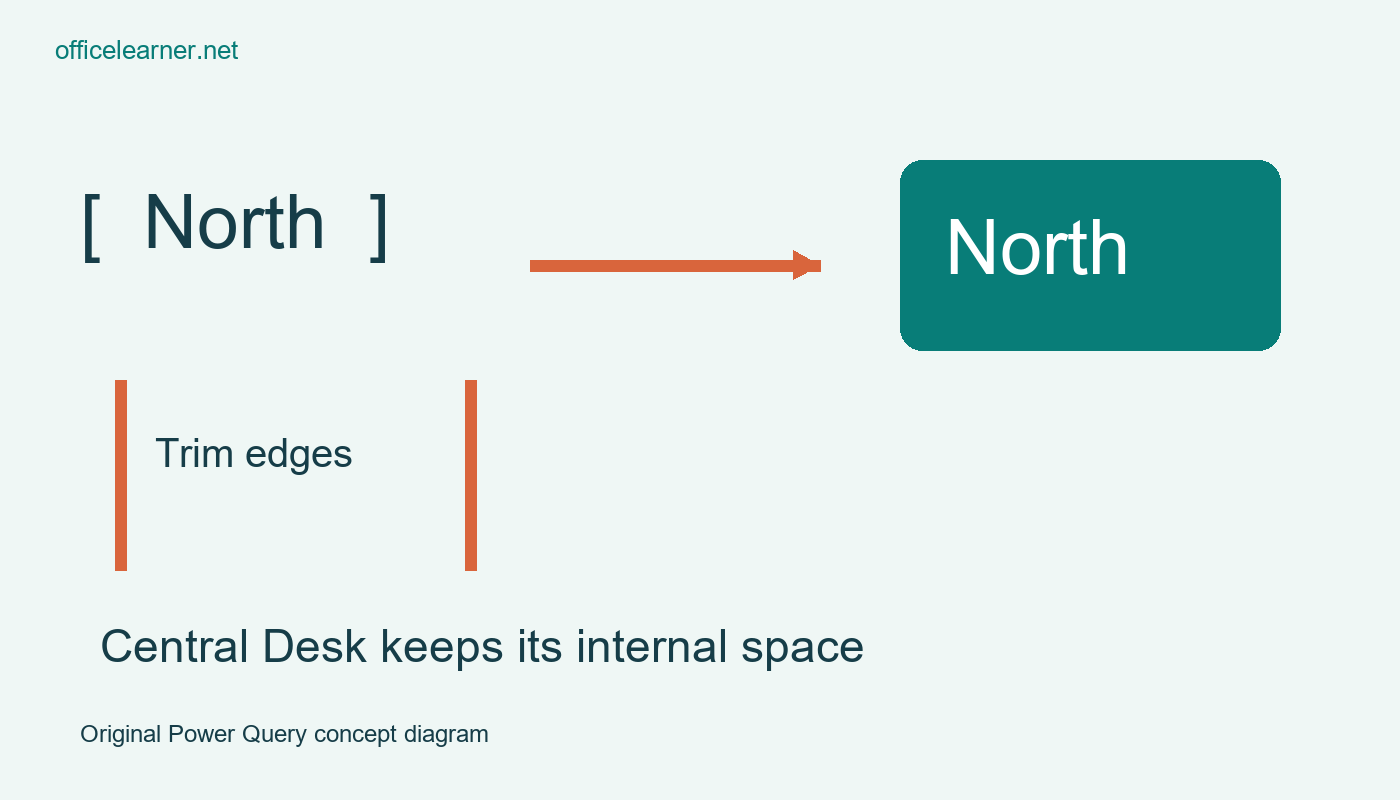
Read the expression before accepting it. The first label begins with two spaces, the second ends with two, and Central Desk has padding at both ends. The fourth label is already unpadded. The output should be North, South, Central Desk, and North. The original RawLabel column remains available for comparison. This is a small local exercise with no external connection, credentials, refresh service, or privacy level interaction to complicate the result.
Verify what changed and what stayed
Inspect the first and fourth rows. Their output labels match even though the raw values differ. That may be the desired cleanup for a regional label, but it also demonstrates why you should review before grouping or merging. Normalizing text can bring records together that were previously separate. If your report counts distinct labels, the count might change even though no source row has been deleted. Check both row counts and the meaning of the cleaned categories.
Look closely at Central Desk. The internal space remains because Text.Trim operates at the edges by default. A label with two spaces between Central and Desk would still have those internal spaces after this transformation. Do not describe trimming as removing every space or as a universal text cleaning operation. Write the intended rule in your query notes: remove unwanted surrounding whitespace while preserving the words and spacing within each label.
Apply the rule to a real column carefully
After the practice works, duplicate a real query or work in a saved copy of the report. Identify the exact text column that needs review. You can use the editor's text transformation controls where available, but the M expression gives you a precise reference for what the operation does. If you transform the existing column directly, retain a raw version elsewhere until you have compared representative values and confirmed that the change is appropriate.
Do not apply a blanket trim to every field simply because one imported label contains padding. Some codes or fixed width records use spaces deliberately, and mixed data types require separate decisions. The sample declares RawLabel as text to keep the exercise predictable. A production column containing numbers, records, or errors needs inspection before applying a text function. Null values and source errors should have an explicit handling policy rather than being silently replaced with invented labels.
Understand refresh and transformation order
Power Query records transformations as steps. On a later refresh, those steps are applied again to the incoming data. Trimming is therefore a repeatable rule rather than a one time edit to a visible table cell. Put the operation where its consequences are understandable. If a merge needs normalized keys, clean the appropriate inputs before merging, then review duplicate keys. If your goal is only a display label, consider whether changing the join key is necessary at all.
Rename the step or query with a clear purpose and save the practice file. Apply the query changes when you are ready to load the result. In a real report, inspect a small visual or table showing both raw and trimmed labels during review, then remove temporary review fields only after the decision is documented. Do not infer that a successful preview guarantees every future refresh: new source values, schema changes, or upstream errors can still require attention.
Troubleshoot unexpected output
If the expression fails to parse, check quotation marks, brackets, commas, and the exact column name RawLabel. M is case sensitive. Copying formatted quotation marks from a word processor can also damage an expression. The example uses ordinary straight double quotation marks. If a suspicious character remains, it may be an internal character or something outside your intended whitespace rule. Inspect the actual value before choosing a broader replacement that could change meaningful text.
The documented Text.Trim function supports an optional trim argument, but this exercise intentionally uses its default behavior. Supplying a custom character list changes the rule and should be a separate decision. This workflow concerns Power Query in Power BI Desktop; it is not a DAX calculated column or a report visual formatting setting. Screens, command positions, and available editing surfaces can vary with Desktop releases, so retain the reproducible M expression with the review notes.
Extend the example with a prediction
Add a practice label containing two internal spaces between Central and Desk. Before refreshing, write the exact output you expect. Then compare the result with the padded version and explain why they do not necessarily become identical. Would your real data need a separate internal spacing rule, or would that damage valid labels? Answer that question before adding another transformation. A narrow, understood cleanup is easier to maintain than a long chain whose effects nobody has checked.