
Duplicate a PowerPoint slide for a controlled variation
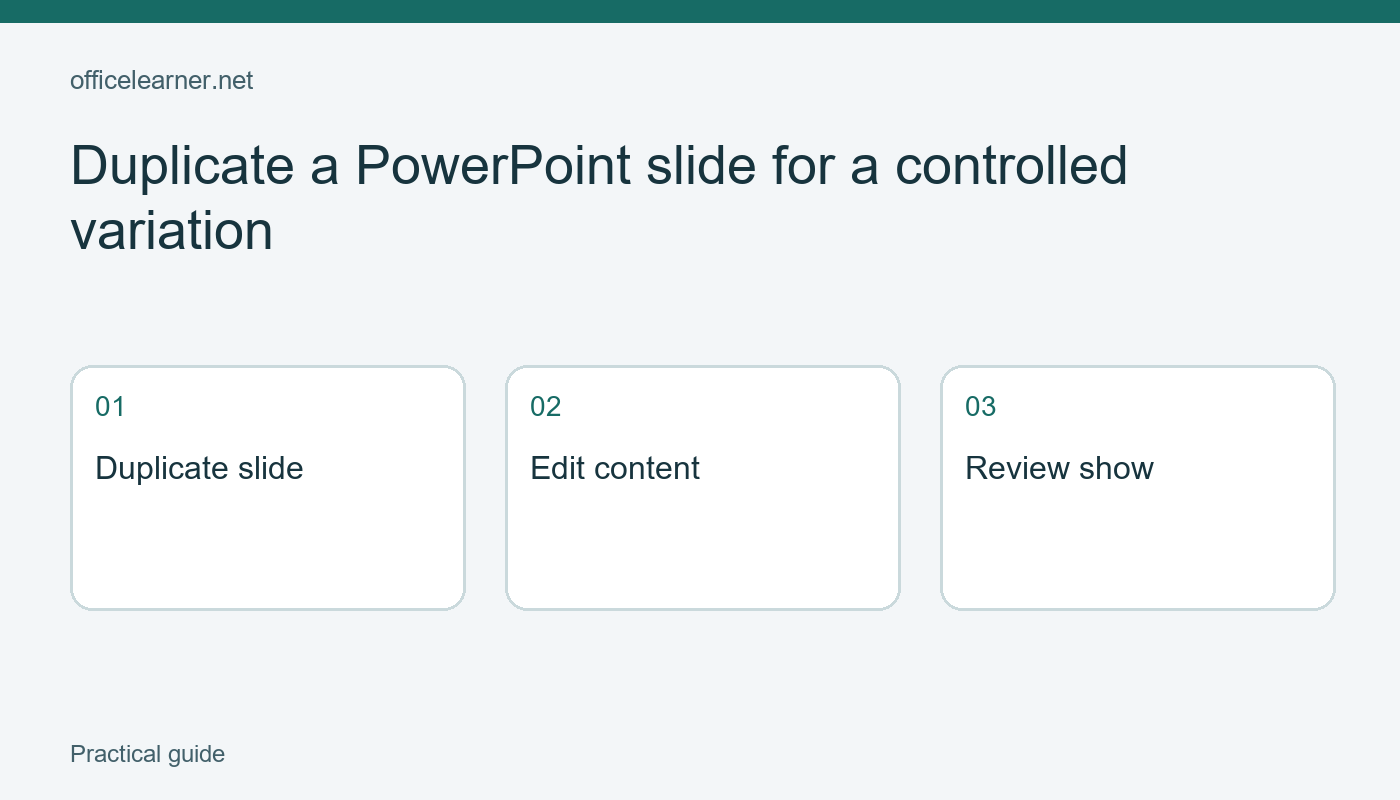
Duplicate a slide when you want a second version that starts with the same layout and objects. Then change only the content that needs to differ and check the copy in Slide Show view. This is useful for a workshop that needs one worked example followed by a learner exercise. It saves rebuilding a slide, but it also copies mistakes and hidden details, so the review of the duplicate is part of the task rather than an optional finishing touch.
Choose a modest example
Create a three-slide practice presentation in desktop PowerPoint. Give the first slide the title Workshop plan. Make the second slide a worked example with the title Sort these supplies and three text boxes containing Paper, Tape, and Pens. Use the third slide for a closing question. Save the file as a practice copy. These invented labels are simple enough to inspect without distracting you with an unfamiliar subject or copyrighted slide content.
The goal is to create an exercise immediately after the worked example. The exercise should retain the same three-box arrangement but contain Folder, Ruler, and Pencil instead. Keeping the layout stable lets the audience concentrate on the task. You do not need a new theme or a different animation to signal every change. A clear title such as Your turn can establish the purpose while the familiar arrangement preserves continuity between the example and the exercise.
Duplicate from the thumbnail pane
In Normal view, locate the worked-example slide in the thumbnail pane. Select that thumbnail, open its context menu, and choose Duplicate Slide. Microsoft documents duplication alongside the commands for adding, rearranging, and deleting slides. Check where the copy appears in the slide sequence. If necessary, drag its thumbnail so that it follows the worked example and precedes the closing question. Make sure you are moving the copy rather than unintentionally moving the original.
Click the copied slide and change its title to Your turn: organize the supplies. Replace the three item names with the exercise labels. Work through the objects one at a time. If the same word appears in several places, inspect each occurrence rather than assuming that editing one box updates the others. Duplicated slides contain separate slide objects; ordinary text edits on the new slide do not automatically synchronize back to the source slide.
Check what traveled with the copy
Inspect the notes pane on the exercise slide. Speaker notes from the example may still describe the old labels or reveal the answer you intended to keep for later. Rewrite the notes to tell the presenter how long to allow, what question to ask, and when to show the next slide. Notes are part of the working presentation even though they are not ordinary slide text. Leaving the old explanation there can confuse a colleague who presents the deck.
Check links, animations, and transitions if the source slide used them. A link that was correct for the worked example may lead to an answer sheet from the exercise. An animation sequence can also make a changed label appear in an unexpected order. For this basic practice deck, the simplest option is to use no animation. In an existing deck, inspect the relevant controls and run the copied slide instead of relying on the appearance of a static editing view.
Review the sequence as an audience
Start Slide Show view at the worked example. Advance to the exercise and then to the closing question. Confirm that the sequence is logical, the new title is visible, and the labels fit within their boxes. A longer replacement phrase may wrap onto another line even if the original word fitted easily. If the new text is crowded, revise the wording or adjust the layout consistently. Shrinking only one label until it is hard to read weakens the exercise.
Compare the two slides side by side in the thumbnail pane after leaving the show. They should look related, but you should be able to distinguish their purpose. Avoid leaving titles such as Copy of example as the only clue. The audience needs a meaningful instruction, while the editor needs a recognizable slide sequence. If the deck is shared, include a short presenter note explaining that the exercise is intentionally based on the preceding example.
Troubleshoot common duplication mistakes
If Duplicate Slide is unavailable, confirm that you selected a slide thumbnail rather than text inside a slide. If the copy appears in the wrong place, move the thumbnail and rerun the nearby sequence. If several slides were copied, check whether multiple thumbnails were selected. Undo a mistaken operation promptly while the change is easy to identify. Work in a saved practice file until selecting the slide, rather than an object, becomes comfortable.
This walkthrough targets desktop PowerPoint in current Microsoft 365 and the perpetual releases listed in Microsoft's support article. PowerPoint for the web and Mac can present menus differently. Use the documented duplicate command for your platform and inspect the resulting slide. A duplicate is a snapshot of the source at the time it is made; later changes to the source are not a general update mechanism for the copy. For reusable deck-wide formatting, learn about layouts and slide masters separately.
Give the copy a purpose
As a final exercise, duplicate the learner slide once more and turn it into an answer discussion. Add a title that explains the new purpose and change only the necessary content. Check that you now have an example, an exercise, and a discussion in that order. Then ask another person to identify the three stages without reading your notes. Which visual elements help them recognize continuity, and which text changes make the activity clear? Keep the version that communicates the learning task most directly.